Complete Tool Manual
Full reference for every screen and feature in the SPO Version Management Windows GUI application (v2.4.0).
New here? Start with the Quick Start Guide first.
Navigation Structure
The application sidebar contains these main sections:
| Section | Purpose |
|---|---|
| Home | Overview dashboard with tenant stats, quick actions, storage trend |
| Pre reqs | System prerequisites validation |
| Config | Tenant connection, Entra ID apps, dashboard settings, directories, telemetry |
| HTTP Server | Local web dashboard server controls |
| Retention | Retention policy management (Purview) |
| Sites | Site catalog, scope, archiving (5 sub-screens) |
| Execution | All operational workflows (6 sub-screens) |
| Task Scheduler | Unattended scheduled runs |
| History | Full execution audit trail |
| Updates | Version management and auto-update |
Home
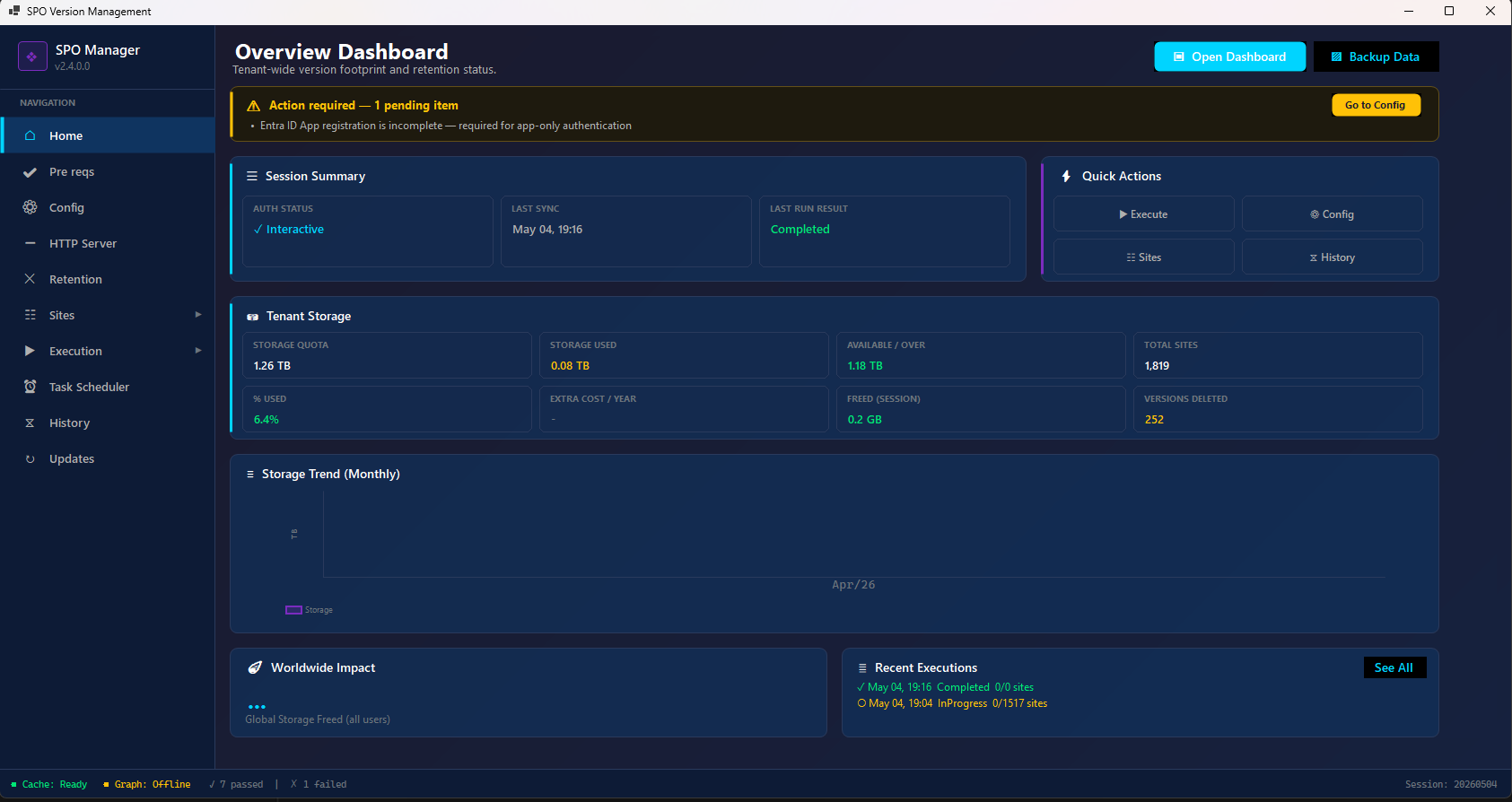
The Home screen is your at-a-glance operational view of the tenant. It shows:
Session Summary
| Card | Description |
|---|---|
| Auth Status | Current authentication state (Interactive or App-Only) |
| Last Sync | Date/time of last data synchronization |
| Last Run Result | Result of last execution (Completed, InProgress, Failed) |
Quick Actions
Shortcut buttons to the most common screens:
- Execute → Execution > Clean Versions
- Config → Configuration
- Sites → Site Catalog
- History → Execution History
Tenant Storage
| Metric | Description |
|---|---|
| Storage Quota | Total tenant storage allocation |
| Storage Used | Current consumption |
| Available / Over | Remaining quota (green = available, red = over quota) |
| Total Sites | Number of SharePoint sites in tenant |
| % Used | Percentage of quota consumed |
| Extra Cost / Year | Projected annual cost if over quota |
| Freed (Session) | Storage freed in the current/last session |
| Versions Deleted | Number of versions removed in last session |
Storage Trend (Monthly)
A chart showing monthly storage evolution over time. Updated by Data Sync.
Worldwide Impact
Shows aggregated anonymous statistics from the community telemetry backend (total storage freed by all participants globally).
Recent Executions
Quick view of the last 2-3 execution runs with timestamp, status, and site count.
Actions:
- Open Dashboard (top-right button) — Opens the HTML dashboard in your browser (http://localhost:8080)
- Backup Data — Creates a backup of all configuration and log files
PowerShell equivalent:
# Open the web dashboard
.\Start-Dashboard.ps1
# Opens http://localhost:8080
Pre reqs
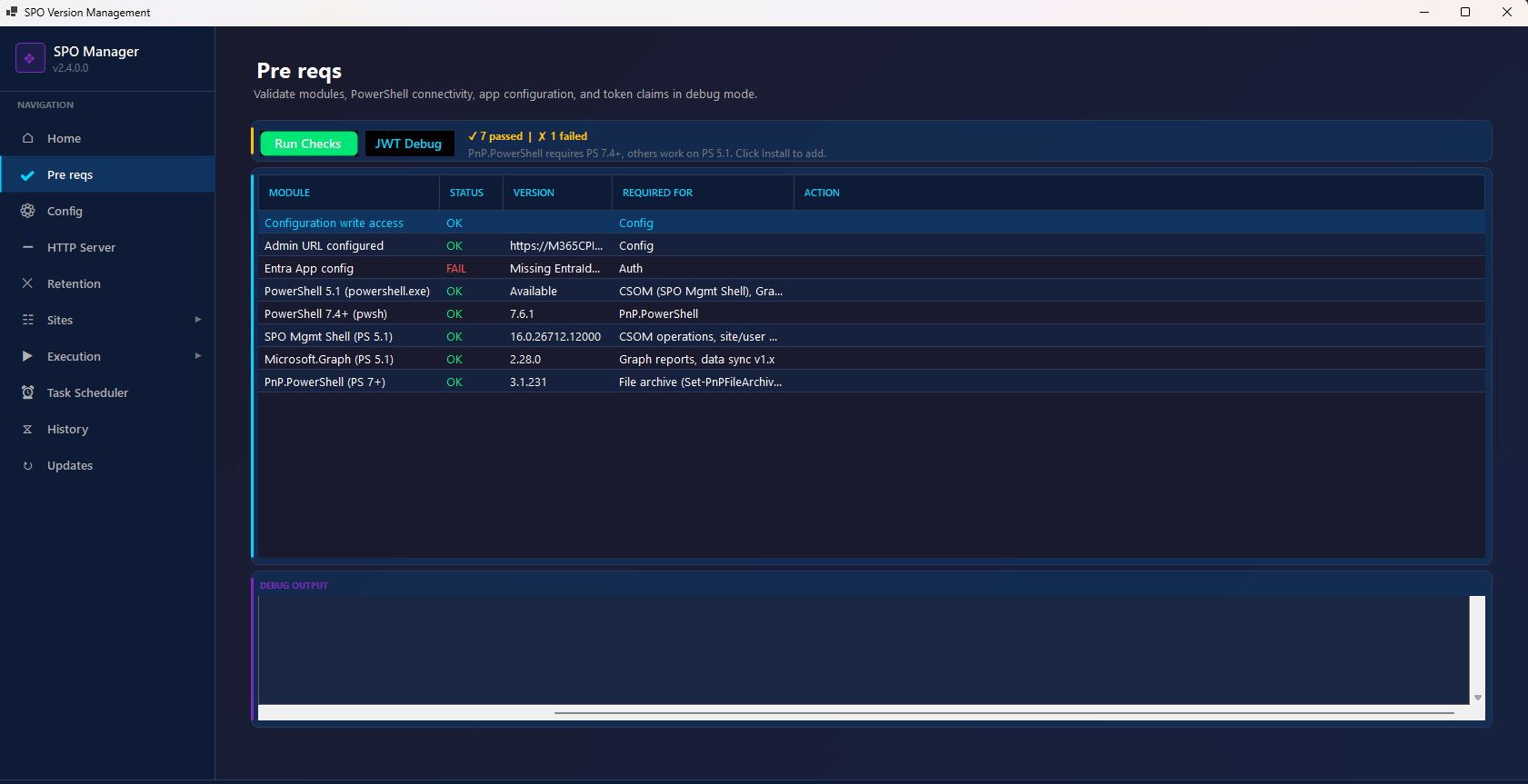
The Prerequisites screen validates your entire environment before you can run the tool. Click Run Checks to validate all dependencies.
Validation Grid
| Module | What it checks |
|---|---|
| Configuration write access | Can write to config folder |
| Admin URL configured | SharePoint admin URL is set |
| Entra App config | Client ID, Tenant ID, Certificate are configured |
| PowerShell 5.1 (powershell.exe) | Available for CSOM/SPO Management Shell/Graph |
| PowerShell 7.4+ (pwsh) | Required for PnP.PowerShell |
| SPO Mgmt Shell (PS 5.1) | Microsoft.Online.SharePoint.PowerShell module installed |
| Microsoft.Graph (PS 5.1) | Microsoft.Graph.Reports module for usage data |
| PnP.PowerShell (PS 7+) | Required for file archive operations |
Each row shows: Status (OK / FAIL), Version, Required For, and Action (Install button if missing).
The summary bar shows: ✓ N passed | ✗ N failed
JWT Debug
Click JWT Debug to decode and inspect the access token claims from your certificate authentication. Useful for troubleshooting permission issues.
Debug Output
Bottom panel shows verbose output from prerequisite checks for troubleshooting.
PowerShell equivalent:
# Check PS7
pwsh --version

# Check SPO module
Get-Module -ListAvailable Microsoft.Online.SharePoint.PowerShell

# Check Graph module
Get-Module -ListAvailable Microsoft.Graph.Reports

# Check PnP module (PS7 only)
pwsh -Command "Get-Module -ListAvailable PnP.PowerShell"
Config
The Configuration screen is split into multiple sections. Scroll down to see all options.
Part 1 — Connection & Authentication
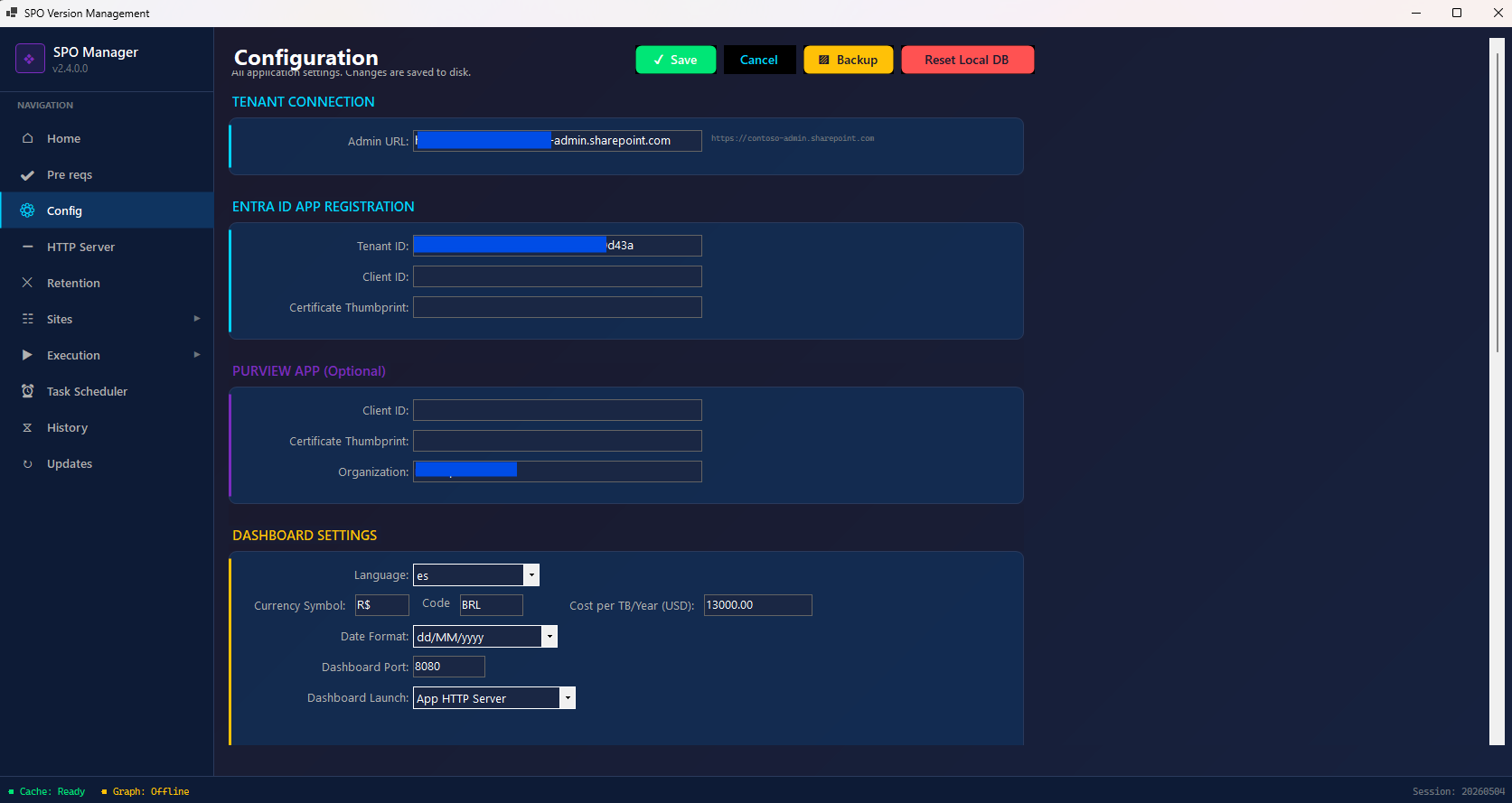
Tenant Connection
| Field | Description |
|---|---|
| Admin URL | Your SharePoint admin center URL (e.g., https://contoso-admin.sharepoint.com) |
Entra ID App Registration
| Field | Description |
|---|---|
| Tenant ID | Azure AD / Entra ID tenant identifier |
| Client ID | Application (client) ID from your app registration |
| Certificate Thumbprint | Certificate uploaded to the Entra ID app (for app-only auth) |
Important: Without Entra ID app registration, you’ll need to log in interactively every time. See the Entra ID App Setup Guide for step-by-step instructions.
Purview App (Optional)
Required only if you want to manage retention policies:
| Field | Description |
|---|---|
| Client ID | Separate app registration for Purview/Compliance |
| Certificate Thumbprint | Certificate for the Purview app |
| Organization | Your tenant domain (e.g., contoso.onmicrosoft.com) |
Dashboard Settings
| Field | Description |
|---|---|
| Language | Dashboard language: en, es, pt, de, fr, ja |
| Currency Symbol | Display symbol (e.g., $, R$, €) |
| Code | ISO currency code (e.g., USD, BRL, EUR) |
| Cost per TB/Year (USD) | Your Microsoft 365 extra storage cost (default: 13000.00) |
| Date Format | Display format: dd/MM/yyyy, MM/dd/yyyy, yyyy-MM-dd |
| Dashboard Port | Local web server port (default: 8080) |
| Dashboard Launch | Launch mode: App HTTP Server, External Browser, etc. |
Part 2 — Directories, Auto-Update & Telemetry
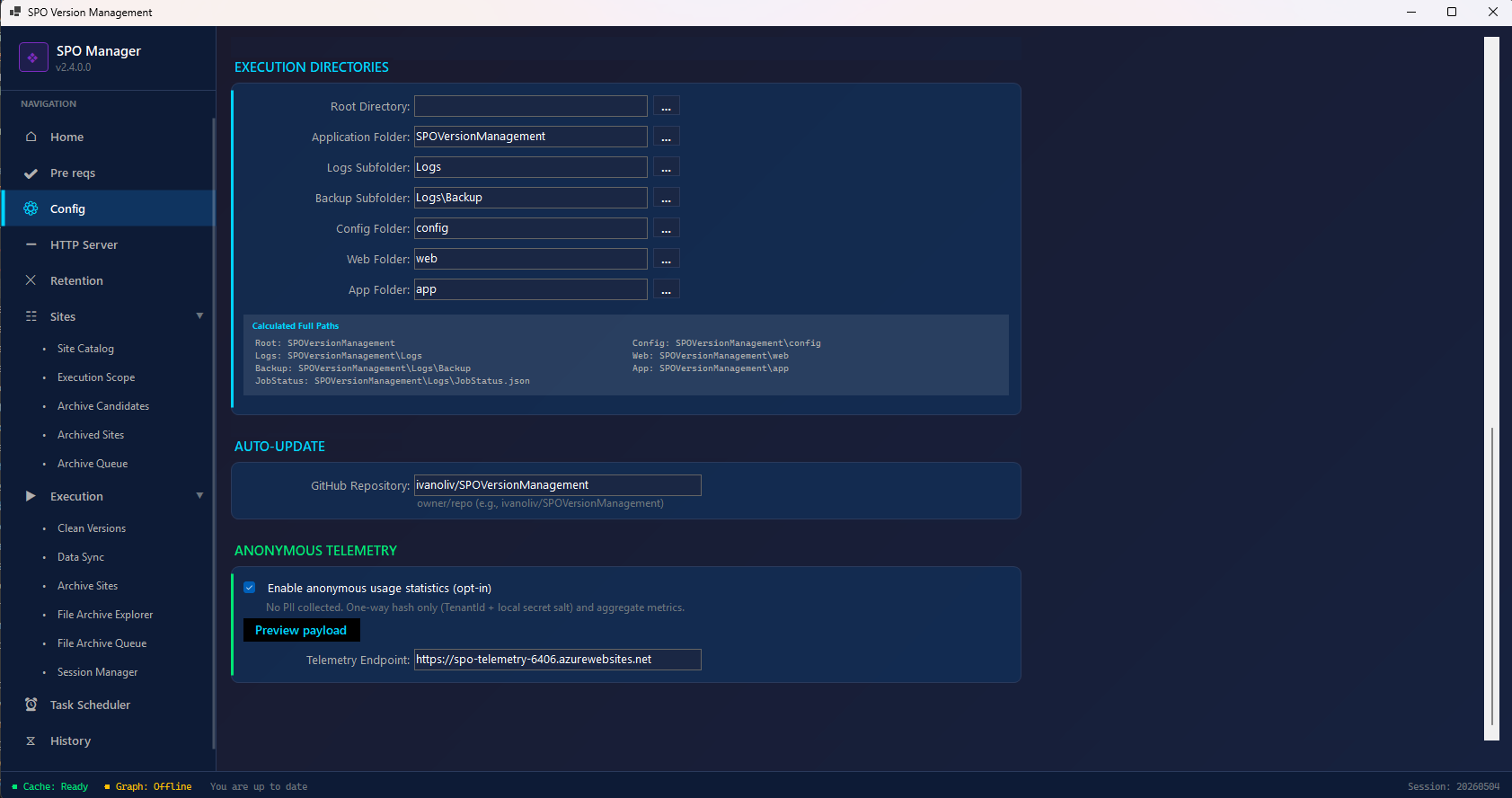
Execution Directories
| Field | Description |
|---|---|
| Root Directory | Base installation path (leave empty for auto-detect) |
| Application Folder | Main application folder name (default: SPOVersionManagement) |
| Logs Subfolder | Where execution logs are saved (default: Logs) |
| Backup Subfolder | Backup location for logs (default: Logs\Backup) |
| Config Folder | JSON configuration database folder (default: config) |
| Web Folder | Dashboard HTML files (default: web) |
| App Folder | GUI application binary (default: app) |
The Calculated Full Paths panel below shows the resolved absolute paths for each directory.
Auto-Update
| Field | Description |
|---|---|
| GitHub Repository | Source repository for updates (default: ivanoliv/SPOVersionManagement) |
Anonymous Telemetry
Telemetry is opt-in and collects only aggregate, non-identifying metrics to help improve the tool.
- ☑️ Enable anonymous usage statistics (opt-in) — Toggle to participate
- Preview payload — Click to see exactly what data will be sent before enabling
- Telemetry Endpoint — The backend URL:
https://spo-telemetry-6406.azurewebsites.net
Example payload sent to backend:
{
  "tenantHash": "a1b2c3d4e5f6...",
  "appVersion": "2.4.0.0",
  "sessionId": "20260504_191530_2f180393",
  "sitesProcessed": 1517,
  "versionsDeleted": 42850,
  "storageFreedBytes": 8589934592,
  "duration": "00:45:12",
  "status": "Completed",
  "mode": "DeleteOnly",
  "majorVersionLimit": 5
}
What IS sent (anonymous, aggregate only):
- One-way hash of TenantId + local secret salt (impossible to reverse-engineer your tenant)
- App version and session ID
- Aggregate counts: sites processed, versions deleted, storage freed
- Job duration, status, and mode
- No IP addresses are logged server-side
What is NEVER sent:
- ❌ Site URLs, names, or any content
- ❌ Tenant name, domain, or admin URL
- ❌ User identity, email, or credentials
- ❌ File names, document content, or metadata
- ❌ Certificate thumbprints or client IDs
Why your participation matters: Telemetry powers the community statistics on the project website showing global impact (total TB freed, sessions run, tenants participating). This anonymous data helps:
- Prioritize features based on real usage patterns
- Demonstrate community impact to justify investment
- Identify common failure scenarios to fix
- Show the worldwide community how much storage is being saved collectively
Your participation is completely anonymous and directly helps improve the tool for everyone.
Actions (top toolbar)
| Button | Description |
|---|---|
| ✓ Save | Save all configuration changes to disk |
| Cancel | Discard unsaved changes |
| Backup | Create a full backup of all config files |
| Reset Local DB | Reset all local JSON databases to defaults (⚠️ destructive) |
PowerShell equivalent:
# All config is stored in config\AppPaths.json
# View current config:
Get-Content .\config\AppPaths.json | ConvertFrom-Json

# Edit directly or use the GUI
HTTP Server
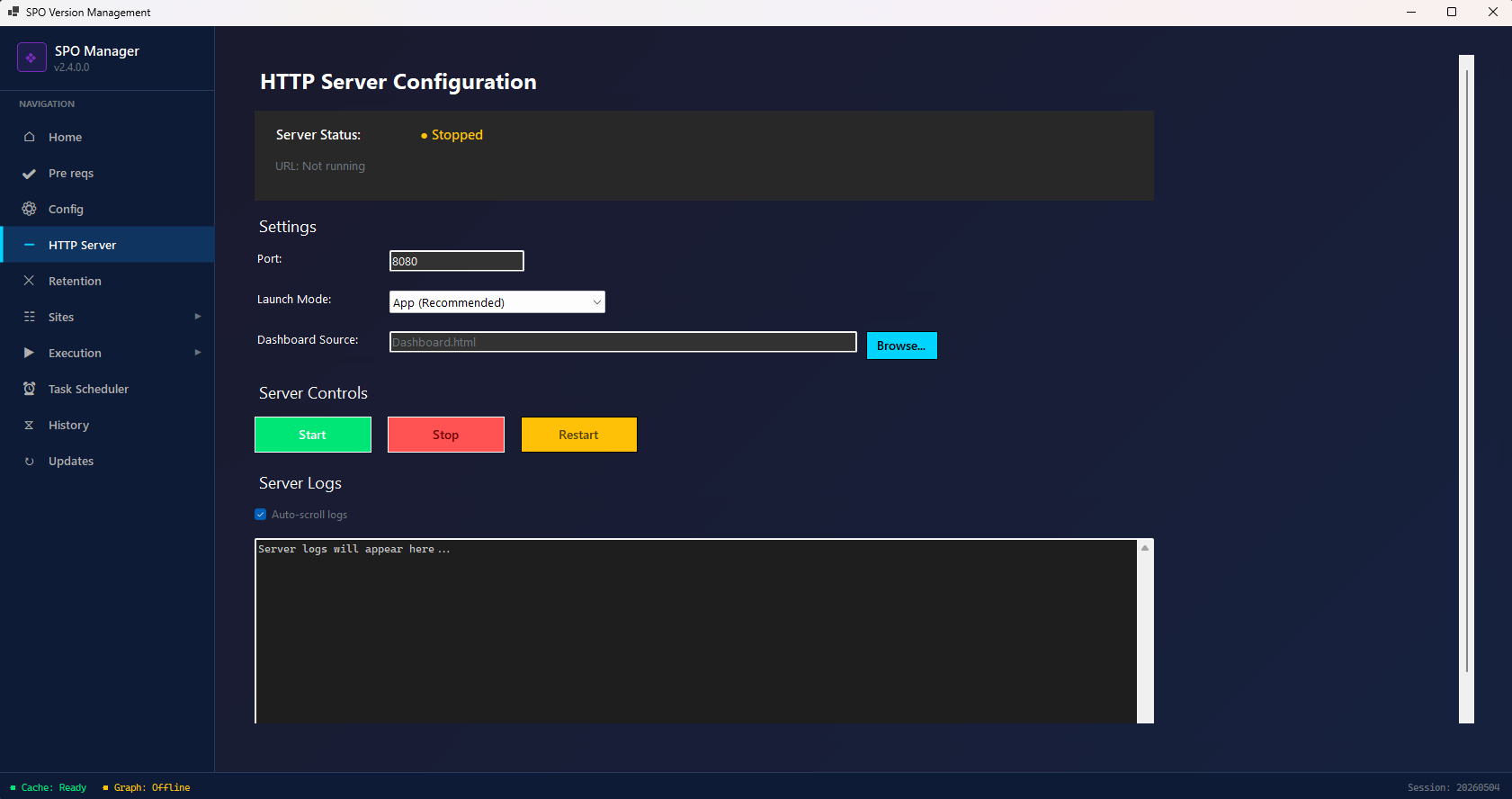
Starts a local web server to host the interactive HTML Dashboard.
Server Status
Shows current state: ● Stopped (red) or ● Running (green) with the active URL.
Settings
| Field | Description |
|---|---|
| Port | Local port number (default: 8080) |
| Launch Mode | App (Recommended) — uses built-in HTTP server; or External |
| Dashboard Source | HTML file to serve (default: Dashboard.html). Click Browse… to select a different file. |
Server Controls
| Button | Description |
|---|---|
| Start (green) | Launch the HTTP server |
| Stop (red) | Stop the server |
| Restart (yellow) | Restart the server |
Server Logs
Real-time log output from the HTTP server. Toggle Auto-scroll logs to follow new entries.
After starting, open http://localhost:8080 in your browser to view the full interactive dashboard with charts, site lists, and analytics.
PowerShell equivalent:
.\Start-Dashboard.ps1
# Starts server and opens http://localhost:8080
Retention
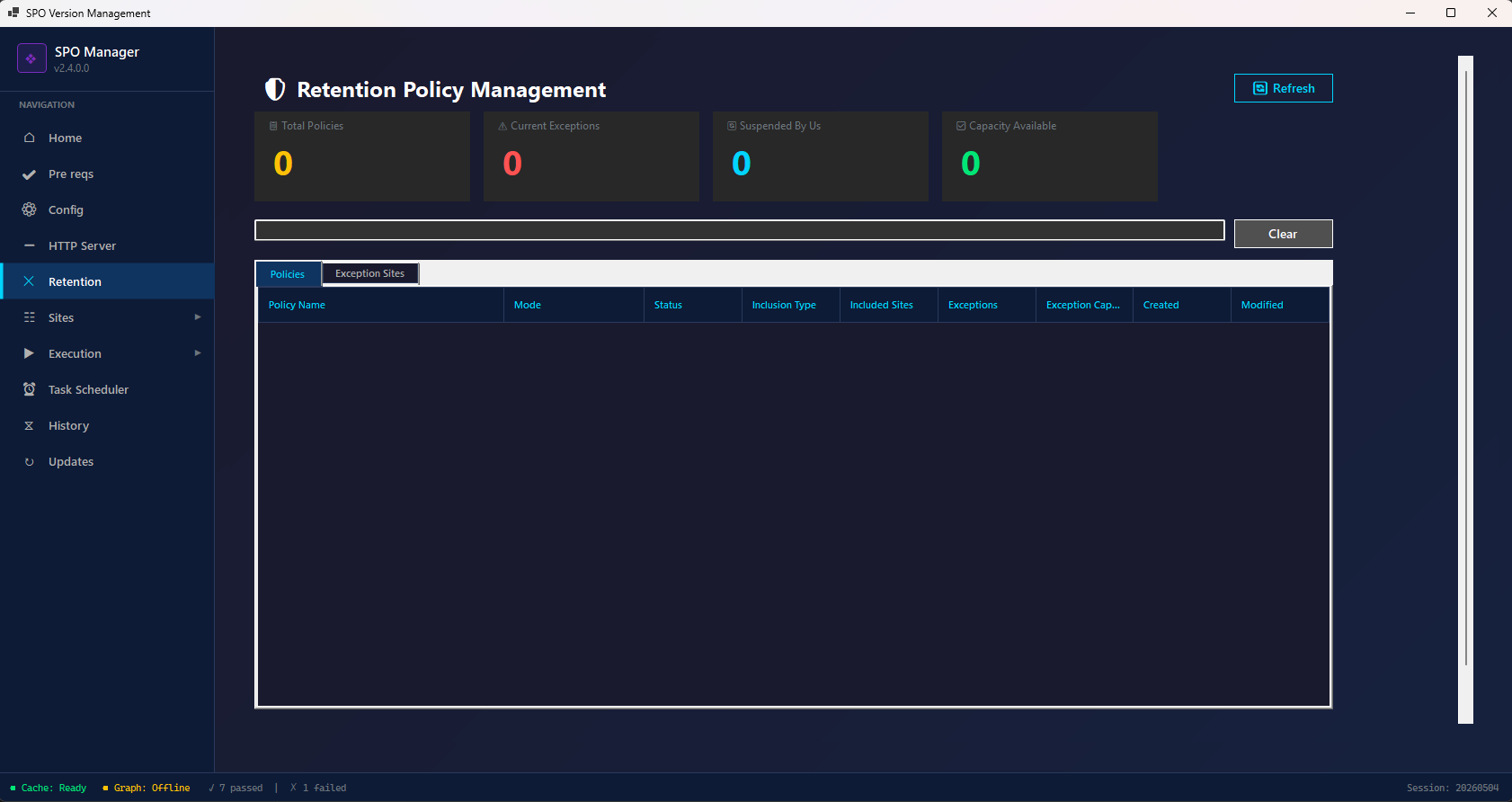
Manage Microsoft Purview retention policies that may block version deletion. When a site is under a retention hold, SharePoint prevents version deletion — this screen lets you handle that.
Summary Cards
| Card | Description |
|---|---|
| Total Policies | Number of retention policies found in tenant |
| Current Exceptions | Sites currently excluded from policies |
| Suspended By Us | Policies this tool has temporarily suspended |
| Capacity Available | Available exception capacity |
Tabs
| Tab | Description |
|---|---|
| Policies | View all retention policies with: Policy Name, Mode, Status, Inclusion Type, Included Sites, Exceptions, Exception Capacity, Created, Modified |
| Exception Sites | View sites that are excluded from retention policies |
Actions
- Refresh — Reload policies from Purview
- Search bar — Filter policies by name
- Clear — Clear the search
Requires: Purview app registration (configured in Config → Purview App section). See Entra ID App Setup — Purview App.
PowerShell equivalent:
.\Start-SPOVersionManagement.ps1 -AdminUrl "https://contoso-admin.sharepoint.com" `
    -MajorVersionLimit 5 -ManageRetentionPolicy
Sites
Site Catalog
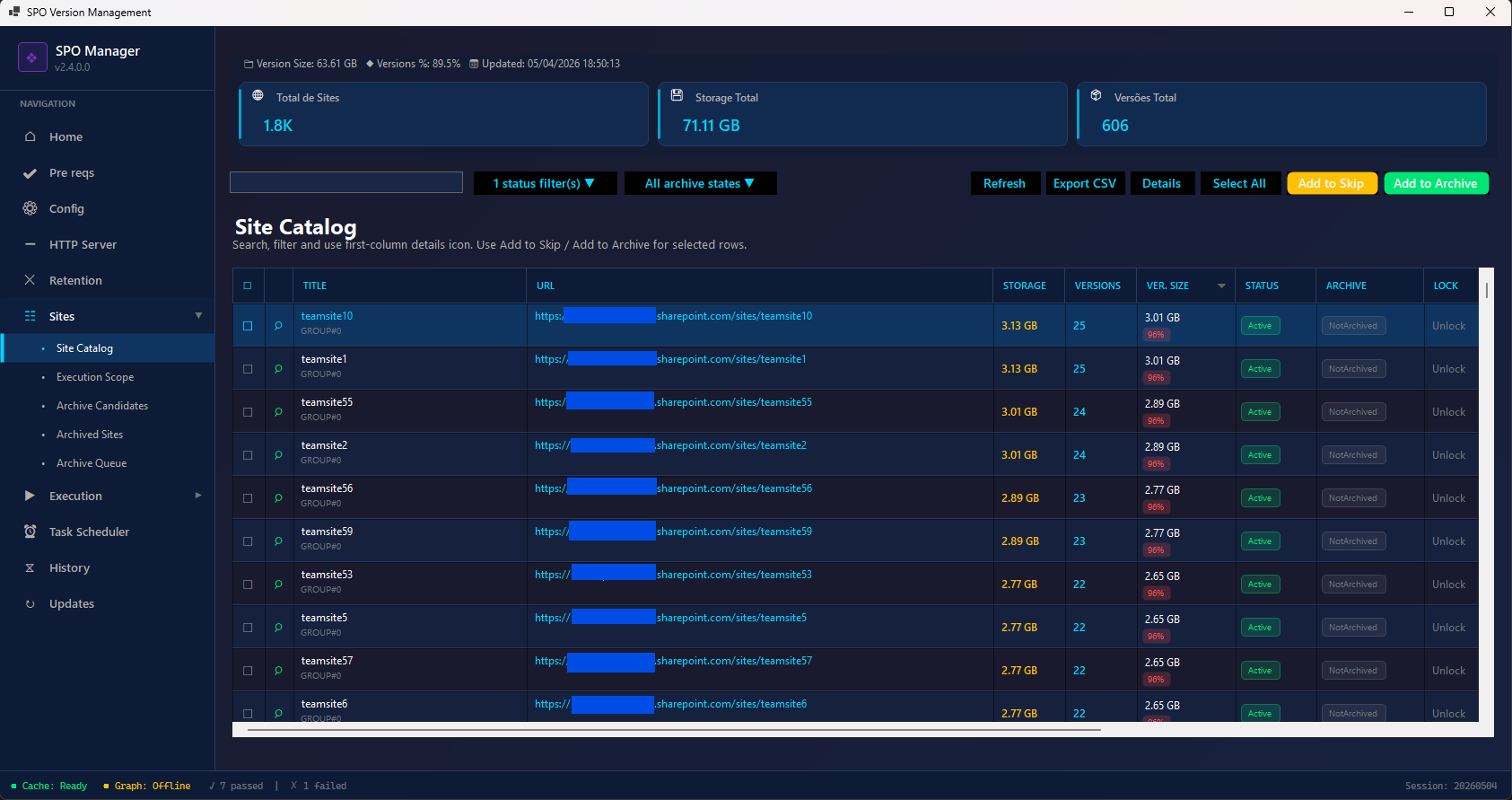
The full inventory of all SharePoint sites in your tenant. This data comes from the Data Sync operation.
Stats Banner (top)
- Version Size — Total storage consumed by versions across all sites
- Versions % — Percentage of total storage that is file versions
- Updated — Timestamp of last data sync
Summary Cards
| Card | Description |
|---|---|
| Total de Sites | Total number of sites |
| Storage Total | Combined storage across all sites |
| Versões Total | Total number of file versions |
Filters
- Text search — Filter by site name or URL
- Status filter(s) — Filter by: Active, Inactive, Locked, etc.
- Archive states — Filter by: All, Archived, NotArchived
Grid Columns
| Column | Description |
|---|---|
| ☐ | Selection checkbox |
| 🔍 | Click magnifier to open Site Detail popup |
| Title | Site display name + group |
| URL | Full site URL |
| Storage | Total storage consumed |
| Versions | Number of file versions |
| Ver. Size | Storage consumed by versions (with percentage bar) |
| Status | Active / Inactive / Locked |
| Archive | NotArchived / Archived |
| Lock | Unlock / ReadOnly / NoAccess |
Actions (top-right)
| Button | Description |
|---|---|
| Refresh | Reload data from cache |
| Export CSV | Export the current view to CSV |
| Details | Open detail popup for selected site |
| Select All | Select all visible sites |
| Add to Skip (red) | Add selected sites to the exclusion (skip) list |
| Add to Archive (blue) | Queue selected sites for archiving |
Site Detail Popup
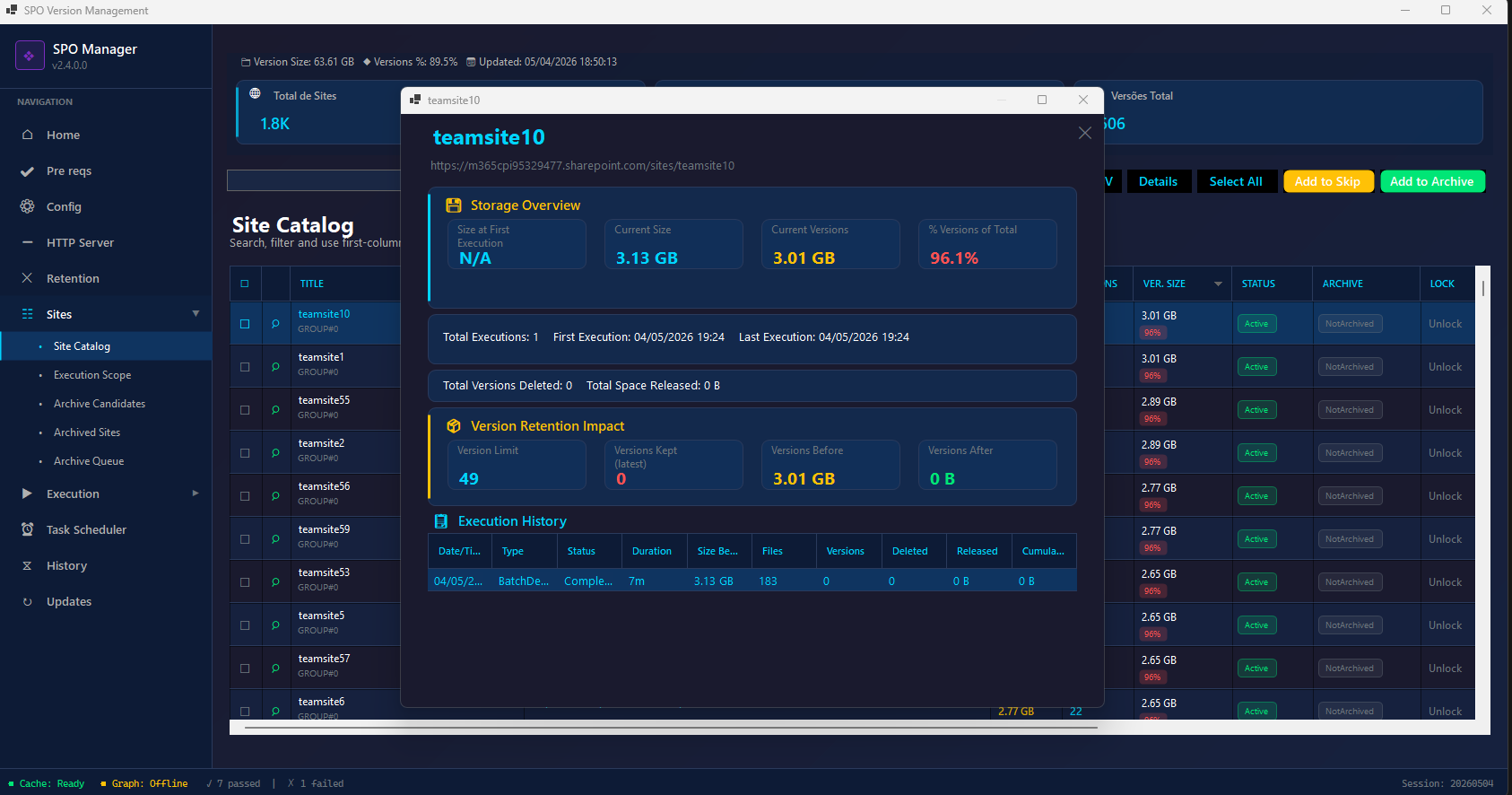
Click the magnifier icon (🔍) on any row in the Site Catalog to open the detail popup. This shows comprehensive information about a single site:
Storage Overview
| Metric | Description |
|---|---|
| Size at First Execution | Site size when tool first processed it (N/A if never processed) |
| Current Size | Current total storage |
| Current Versions | Current version storage consumption |
| % Versions of Total | How much of the site is file versions |
Execution Summary
- Total Executions — How many times the tool has processed this site
- First Execution — Date of first processing
- Last Execution — Date of most recent processing
- Total Versions Deleted — Cumulative versions removed
- Total Space Released — Cumulative storage freed
Version Retention Impact
| Metric | Description |
|---|---|
| Version Limit | Current version limit configured for this site |
| Versions Kept (latest) | Versions retained per the policy |
| Versions Before | Version storage before last cleanup |
| Versions After | Version storage after last cleanup |
Execution History Table
Full log of all operations on this site:
| Column | Description |
|---|---|
| Date/Time | Execution timestamp |
| Type | BatchDelete or SyncListPolicy |
| Status | CompleteSuccess, Failed, InProgress |
| Duration | How long the job took |
| Size Before | Site size before operation |
| Files | Number of files affected |
| Versions | Versions processed |
| Deleted | Versions actually deleted |
| Released | Storage freed |
| Cumulative | Running total of space freed |
PowerShell equivalent:
# Get site details
Get-SPOSite -Identity "https://contoso.sharepoint.com/sites/teamsite1" -Detailed

# Check version deletion job progress
Get-SPOSiteFileVersionBatchDeleteJobProgress -Identity "https://contoso.sharepoint.com/sites/teamsite1"
Execution Scope
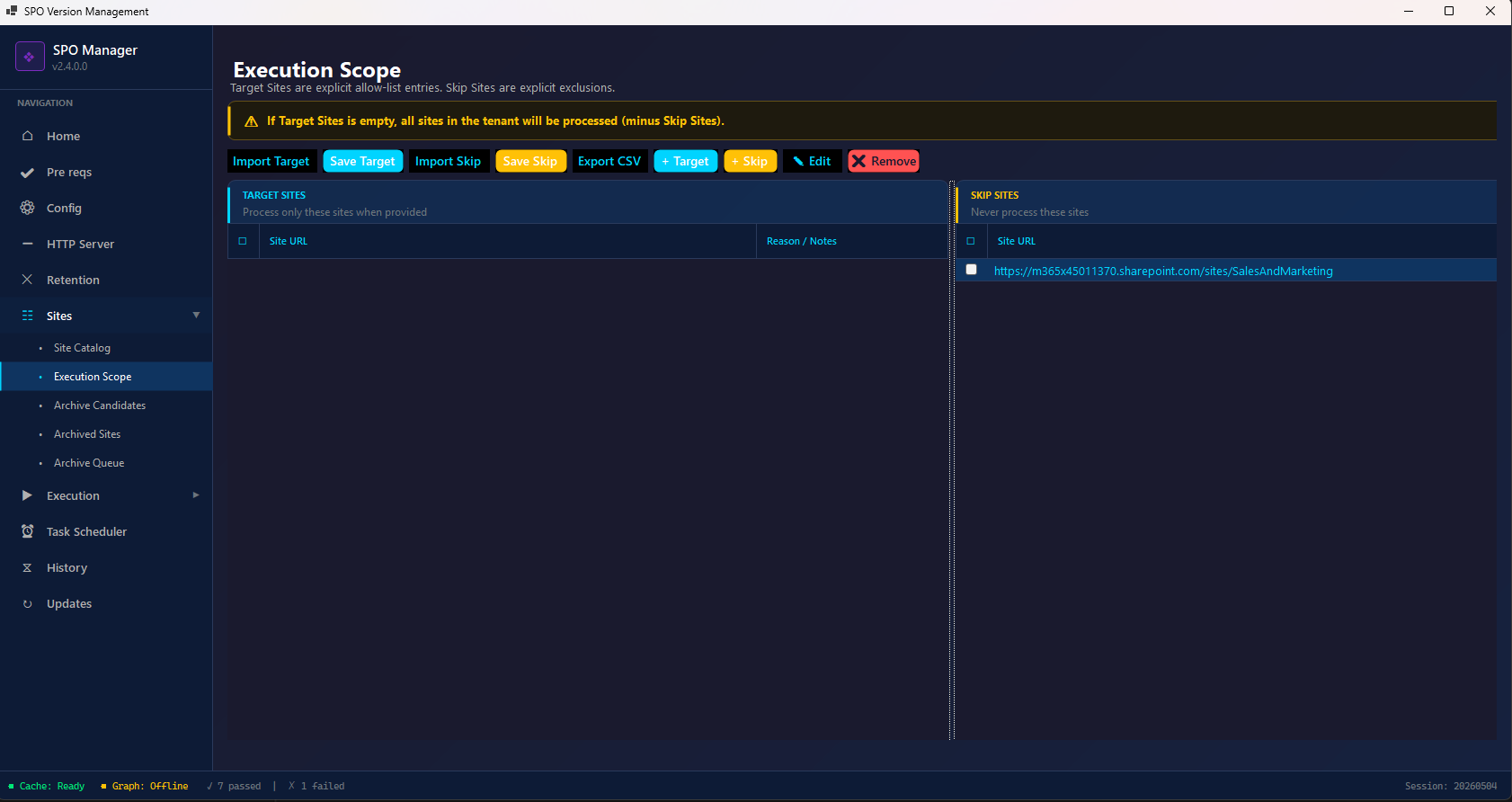
Define exactly which sites to process during execution.
Warning Banner
⚠️ If Target Sites is empty, all sites in the tenant will be processed (minus Skip Sites).
Two Panels
| Panel | Purpose |
|---|---|
| TARGET SITES (left, blue border) | Process only these sites. If empty, all tenant sites are in scope. |
| SKIP SITES (right, red border) | Never process these sites, regardless of other criteria. |
Each panel shows: Site URL and Reason / Notes columns.
Actions (toolbar)
| Button | Description |
|---|---|
| Import Target | Load target sites from CSV file |
| Save Target (green) | Save current target list to CSV |
| Import Skip | Load skip sites from CSV file |
| Save Skip (green) | Save current skip list to CSV |
| Export CSV | Export combined scope to CSV |
| + Target (green) | Manually add a site URL to target list |
| + Skip (blue) | Manually add a site URL to skip list |
| ✏ Edit | Edit selected entry |
| ✗ Remove (red) | Remove selected entries |
PowerShell equivalent:
# Use CSV files for scope control
.\Start-SPOVersionManagement.ps1 -AdminUrl "https://contoso-admin.sharepoint.com" `
    -MajorVersionLimit 5 `
    -IncludeSitesCSV "C:\path\to\IncludeSites.csv" `
    -ExcludeSitesCSV "C:\path\to\ExcludeSites.csv"
Archive Candidates
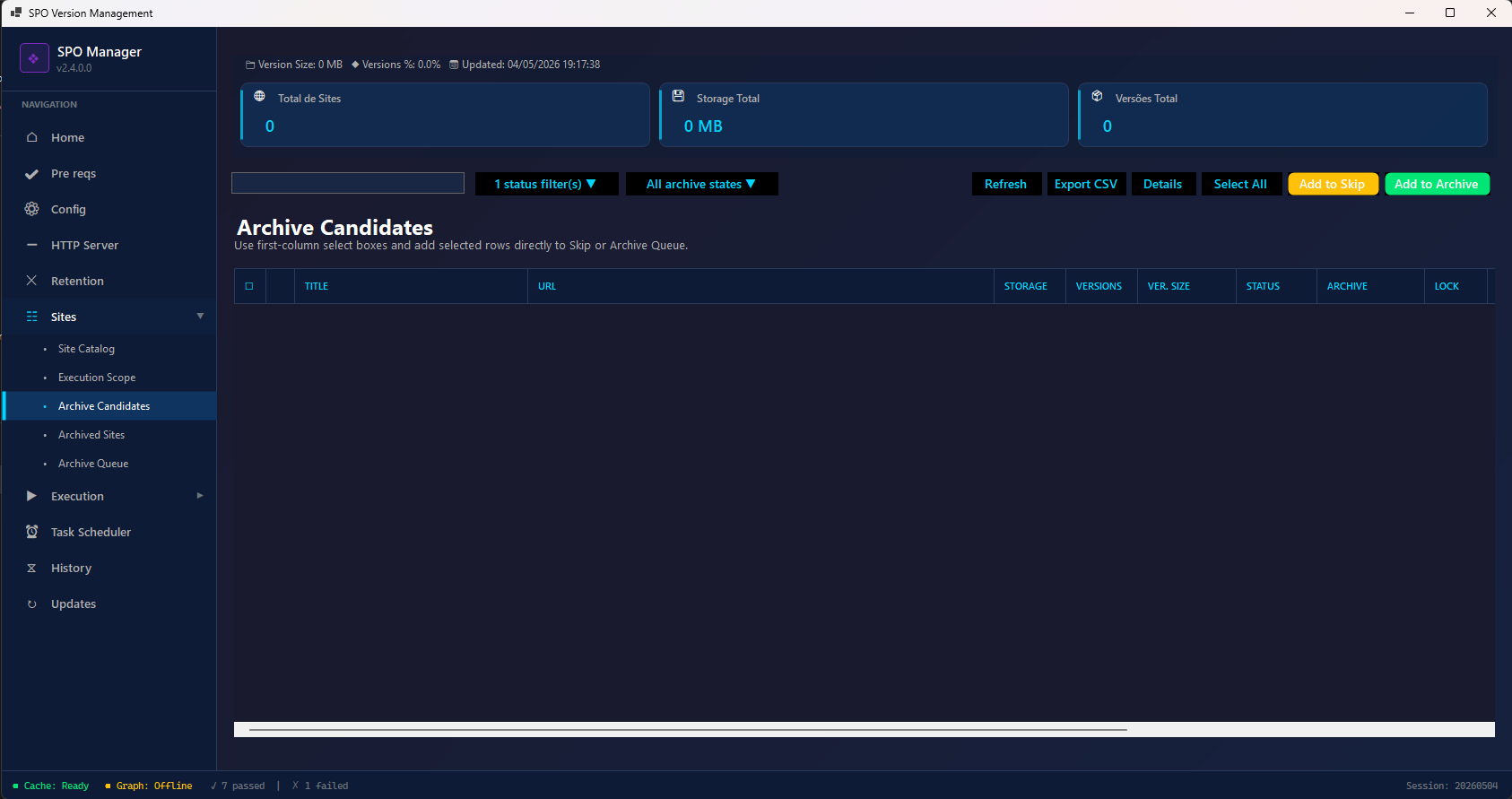
Sites identified as candidates for archiving. These come from the SharePoint Advanced Management (SAM) inactive site report that you import.
The grid shows the same columns as Site Catalog (Title, URL, Storage, Versions, Ver. Size, Status, Archive, Lock).
How to Export the SAM Report
You have two options to get the inactive sites report from SharePoint Admin Center:
Option A — From Advanced Management Overview:
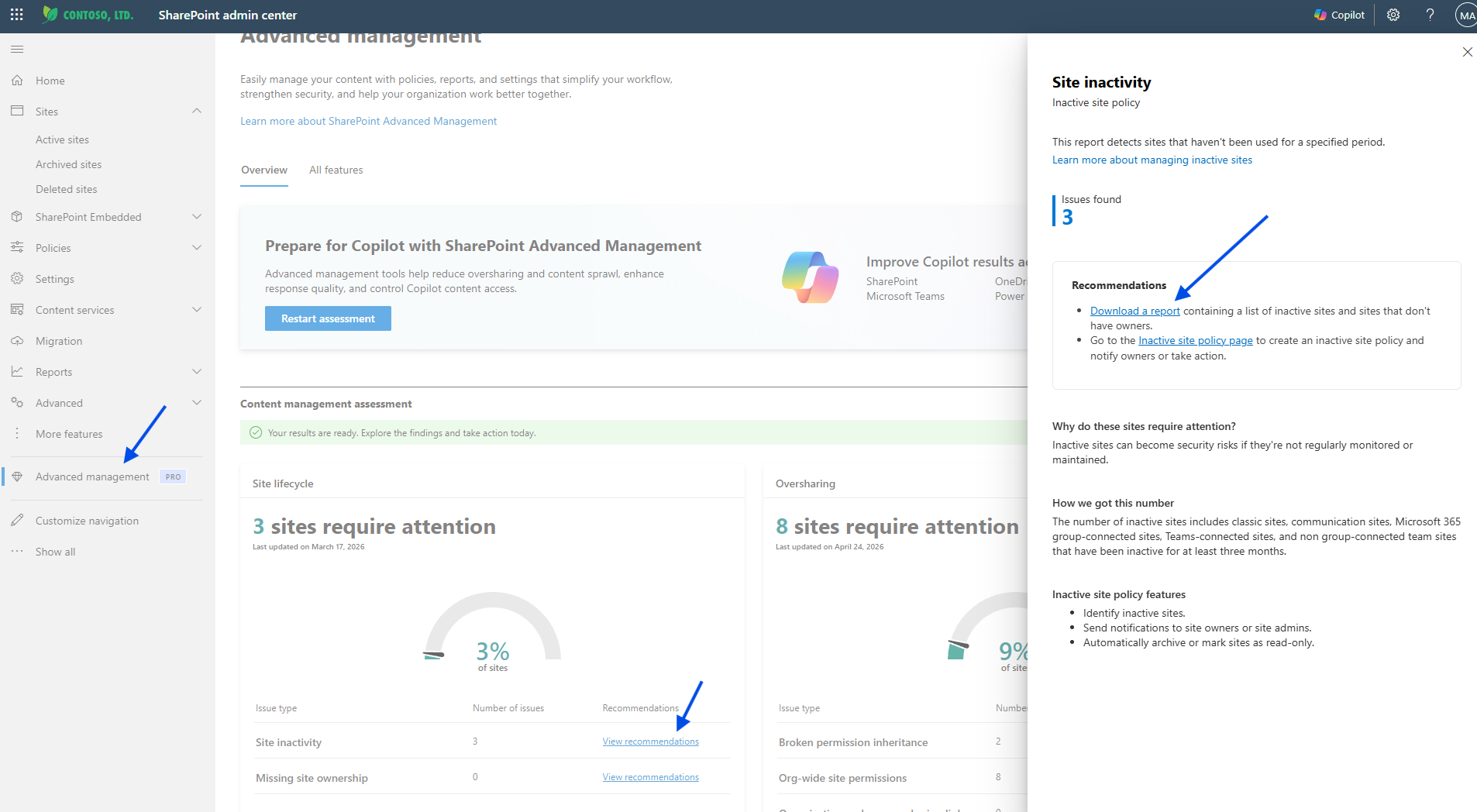
- Go to SharePoint Admin Center → scroll down in left nav
- Click Advanced management (PRO badge)
- Under “Content management assessment”, find Site lifecycle → “Site Inactivity”
- Click View recommendations
- In the “Site inactivity” panel that opens on the right, click Download a report
- Save the CSV file
Option B — From Site Lifecycle Management:
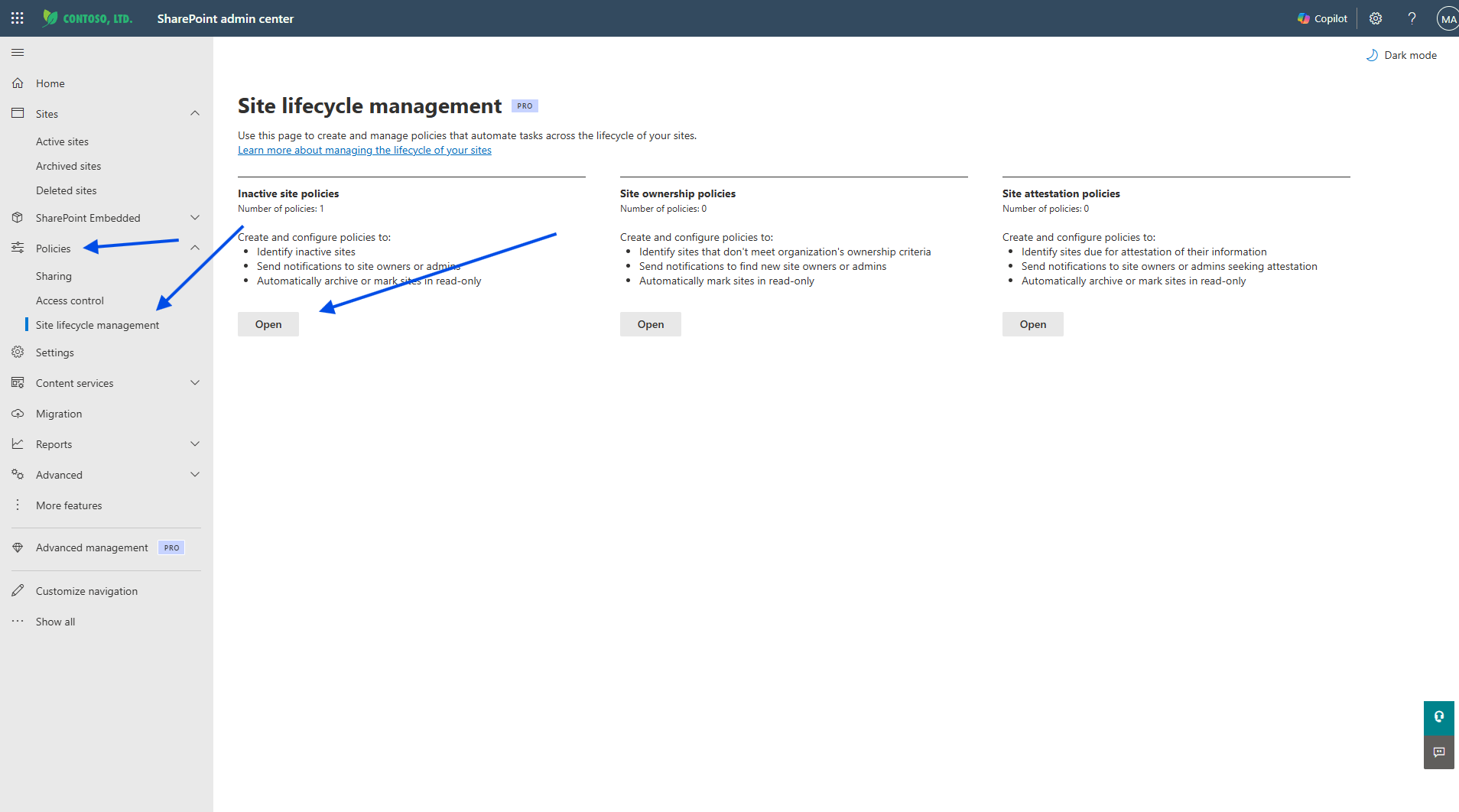
- Go to Policies → Site lifecycle management
- You’ll see your inactive site policies listed
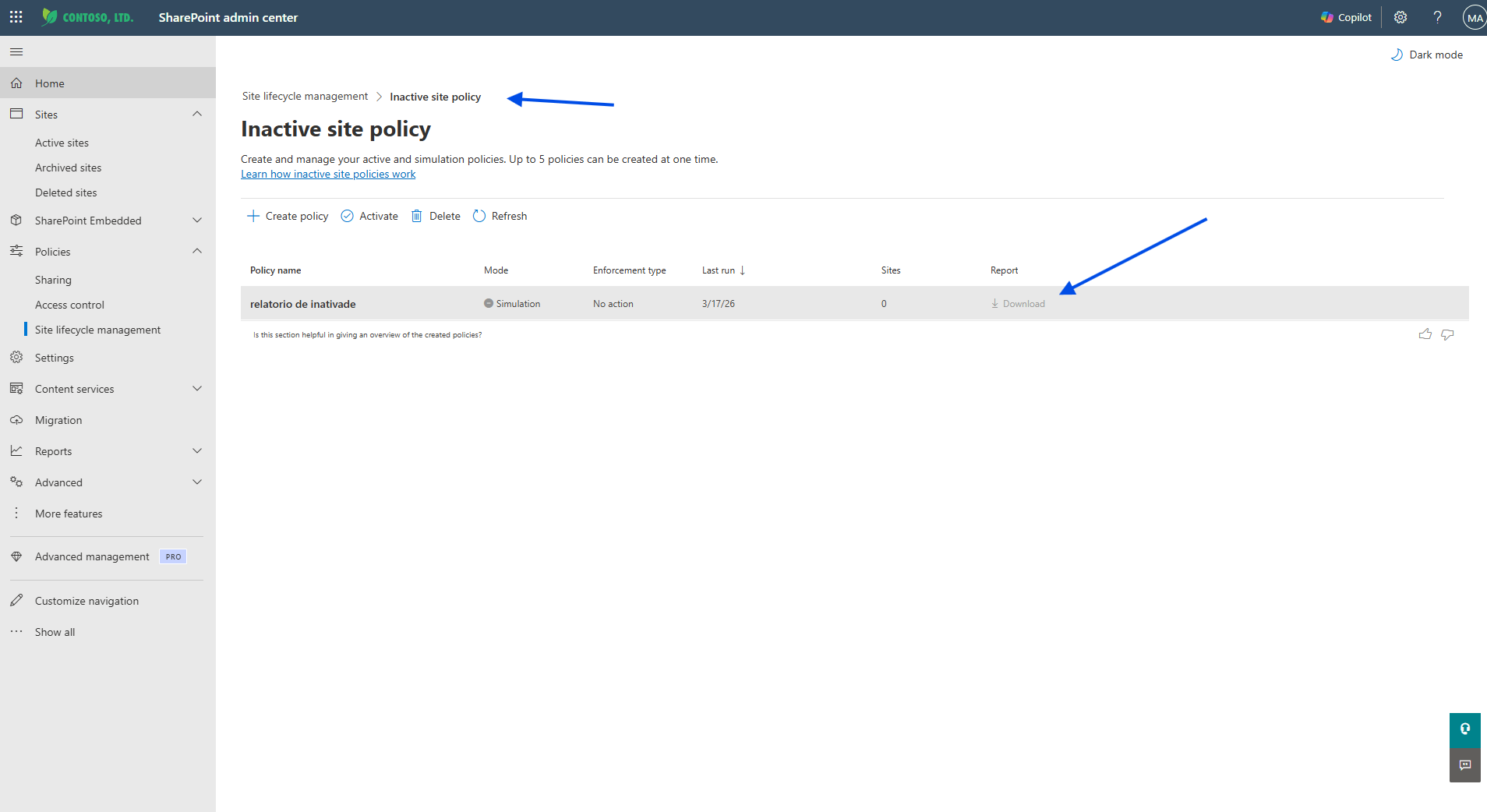
- Click on Inactive site policies → Open
- Find your policy in the list and click ⬇ Download on the Report column
- Save the CSV file
Using the SAM report in the tool:
- Go to Execution → Clean Versions → Input Files → set SAM Report (CSV) to the downloaded file path
- OR go to Sites → Archive Candidates to view them in the grid and decide which to archive
Actions
| Button | Description |
|---|---|
| Refresh | Reload data |
| Export CSV | Export candidates to CSV |
| Details | View site detail popup |
| Select All | Select all visible sites |
| Add to Skip (red) | Exclude from processing |
| Add to Archive (blue) | Move to the Archive Queue for archival |
Archived Sites
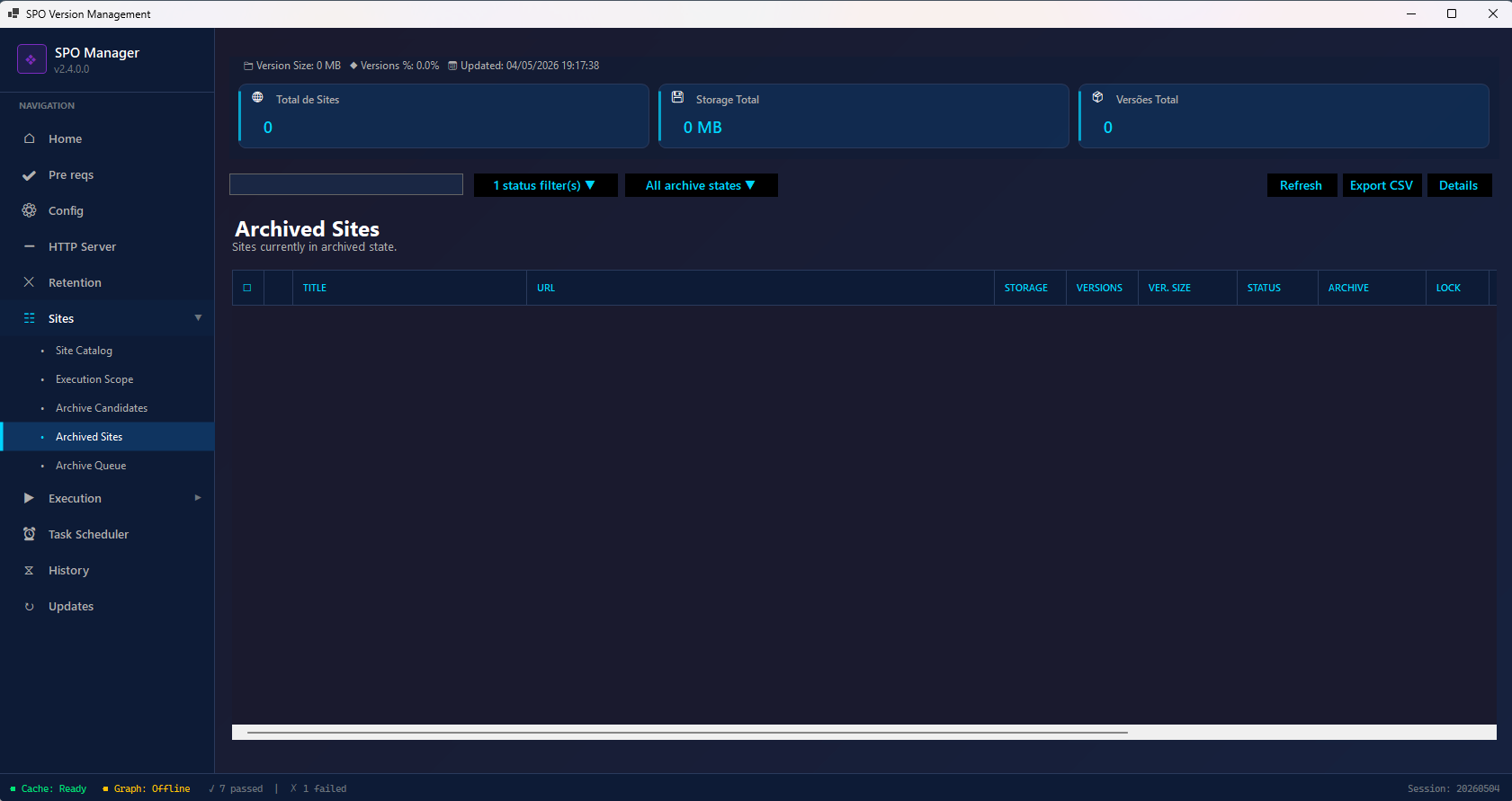
Sites that have already been archived. Shows the same grid as Site Catalog with archive state confirmed. Use this view to verify archival operations completed successfully.
Actions
| Button | Description |
|---|---|
| Refresh | Reload archive states |
| Export CSV | Export archived sites list |
| Details | View site detail popup |
PowerShell equivalent:
# Check archive status
Get-SPOSite -Identity "https://contoso.sharepoint.com/sites/oldsite" | Select-Object Url, LockState, Status

# List all archived sites
Get-SPOSite -Limit All | Where-Object { $_.ArchiveStatus -eq 'Archived' }
Archive Queue
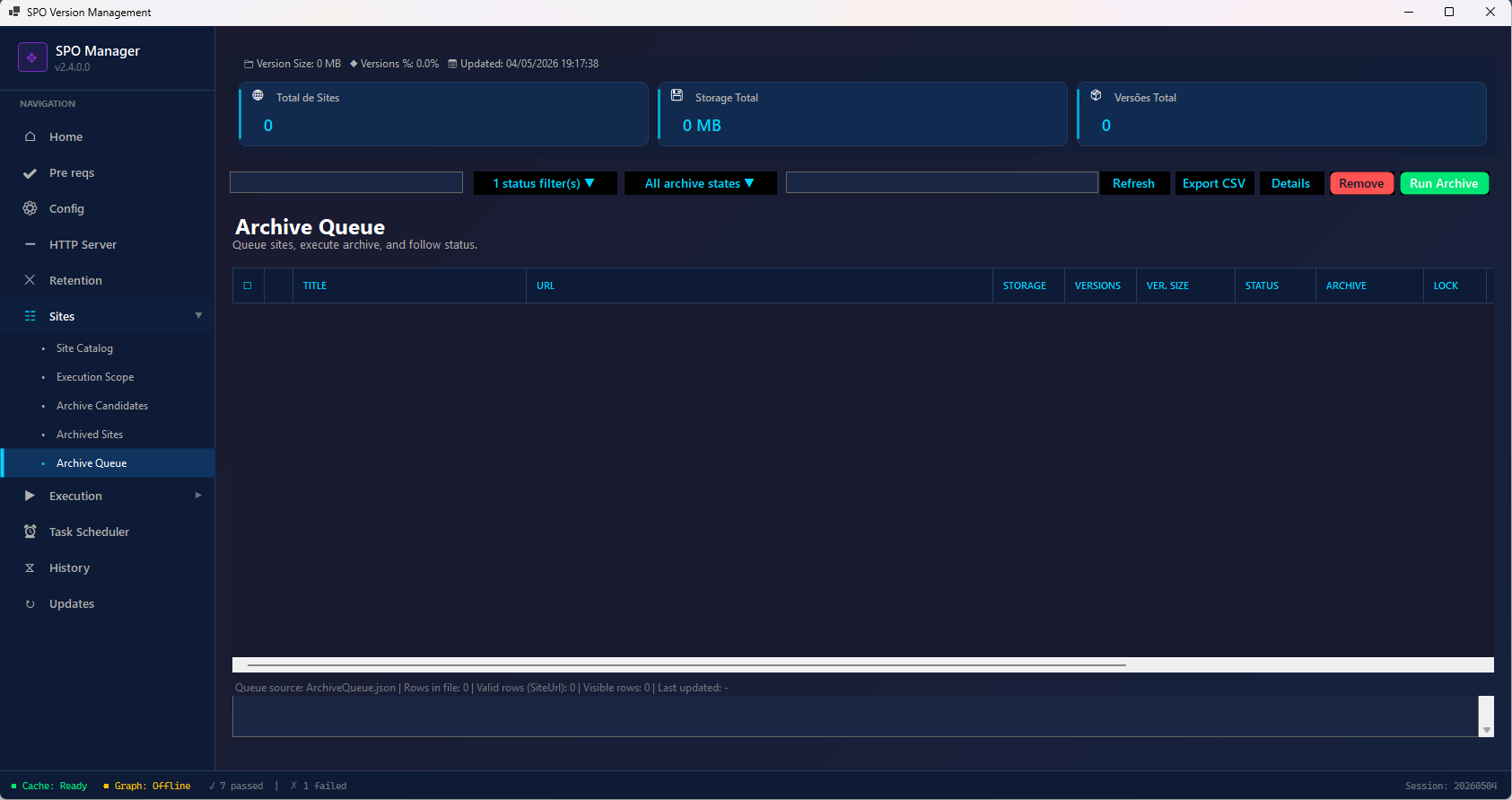
Sites queued for archiving. You add sites here from the Site Catalog or Archive Candidates screens using the “Add to Archive” button.
The grid shows: Title, URL, Storage, Versions, Ver. Size, Status, Archive, Lock.
The bottom status bar shows: Queue source: ArchiveQueue.json | Rows in file: N | Valid rows (SiteUrl): N | Visible rows: N | Last updated: <timestamp>
Actions
| Button | Description |
|---|---|
| Refresh | Reload the queue |
| Export CSV | Export queue to CSV |
| Details | View site detail |
| Remove (red) | Remove selected sites from queue |
| Run Archive (blue) | Execute the archive operation for all queued sites |
When you click Run Archive, the tool opens a PowerShell window and executes the SharePoint archive command for each site in the queue.
PowerShell equivalent:
# Archive a site (lock access)
Set-SPOSite -Identity "https://contoso.sharepoint.com/sites/oldsite" -LockState NoAccess

# Full archive with SAM license (Microsoft official):
Set-SPOSiteArchiveState -Identity "https://contoso.sharepoint.com/sites/oldsite" -ArchiveState Archived

# Reactivate an archived site:
Set-SPOSiteArchiveState -Identity "https://contoso.sharepoint.com/sites/oldsite" -ArchiveState Active
Execution
Clean Versions
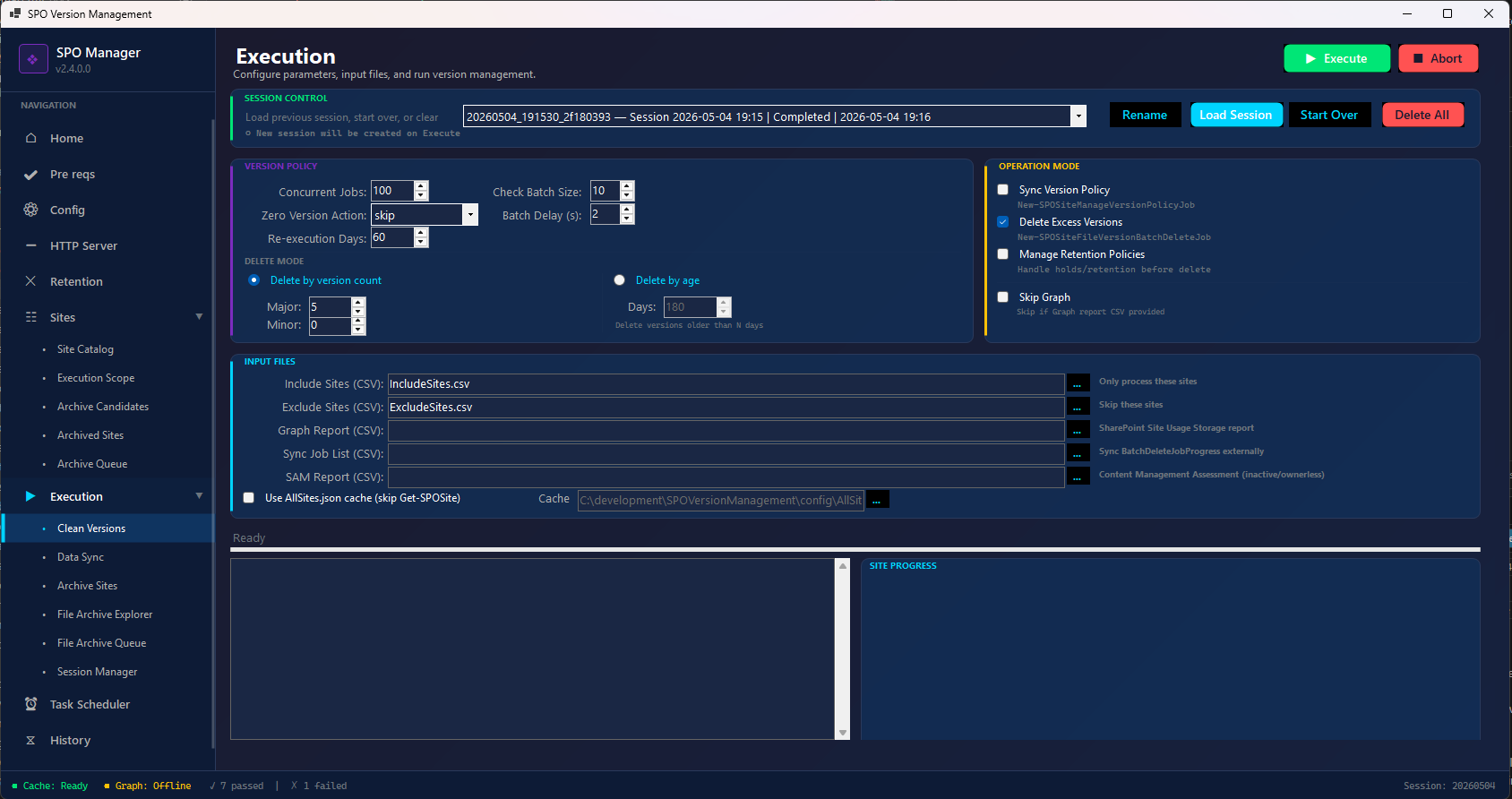
The main execution screen for version cleanup operations. This is where you configure and launch the version deletion process.
Session Control (top bar)
| Control | Description |
|---|---|
| Session dropdown | Shows current/previous session with ID, timestamp, and status |
| Rename | Rename a session for easier identification |
| Load Session (green) | Resume a previous interrupted session from where it stopped |
| Start Over | Create a new blank session (⚠️ a new session will be created on Execute) |
| Delete All (red) | Remove all session history |
Tip: Sessions auto-save on interruption. You can always resume exactly where you left off.
Version Policy (left panel)
| Setting | Description | Default |
|---|---|---|
| Concurrent Jobs | Number of parallel batch operations | 100 |
| Check Batch Size | How many jobs to check status at once | 10 |
| Zero Version Action | What to do with sites that have 0 versions: skip or process |
skip |
| Batch Delay (s) | Seconds between batch submissions (throttle control) | 2 |
| Re-execution Days | Skip sites processed within N days | 60 |
Delete Mode
| Mode | Description |
|---|---|
| ● Delete by version count | Keep Major N + Minor M versions, delete the rest |
| ○ Delete by age | Delete versions older than Days N |
Operation Mode (right panel)
| Option | API Used | Description |
|---|---|---|
| ☐ Sync Version Policy | New-SPOSiteManageVersionPolicyJob |
Push version limits to all sites and their document libraries |
| ☑️ Delete Excess Versions | New-SPOSiteFileVersionBatchDeleteJob |
Delete versions exceeding the configured limit |
| ☐ Manage Retention Policies | Security & Compliance | Temporarily suspend retention holds before deletion |
| ☐ Skip Graph | — | Don’t call Graph API; use manual CSV instead |
Input Files (bottom panel)
| Field | Description |
|---|---|
| Include Sites (CSV) | Only process these sites (same as Target Sites in Execution Scope) |
| Exclude Sites (CSV) | Never process these sites (same as Skip Sites) |
| Graph Report (CSV) | Manual SharePoint Site Usage Storage report (how to export) |
| Sync Job List (CSV) | External BatchDeleteJobProgress to sync from other admins |
| SAM Report (CSV) | Content Management Assessment from SharePoint Advanced Management (see how to export SAM report) |
| ☐ Use AllSites.json cache | Skip Get-SPOSite and use cached data (faster for large tenants) |
Execution Controls (top-right)
| Button | Description |
|---|---|
| ▶ Execute (green) | Start the version cleanup |
| ■ Abort | Stop the current execution gracefully |
Output Panels (bottom)
- Left panel — Real-time execution log (verbose output)
- Right panel (SITE PROGRESS) — Per-site progress tracker showing current site being processed
PowerShell equivalent:
# Full execution with all options
.\Start-SPOVersionManagement.ps1 `
    -AdminUrl "https://contoso-admin.sharepoint.com" `
    -MajorVersionLimit 5 `
    -MinorVersionLimit 0 `
    -MaxConcurrentJobs 100 `
    -ReexecutionDays 60 `
    -IncludeSitesCSV "IncludeSites.csv" `
    -ExcludeSitesCSV "ExcludeSites.csv" `
    -SkipGraph `
    -GraphReportCSV "SharePointSiteUsageStorage.csv" `
    -ManageRetentionPolicy `
    -Unattended
Data Sync
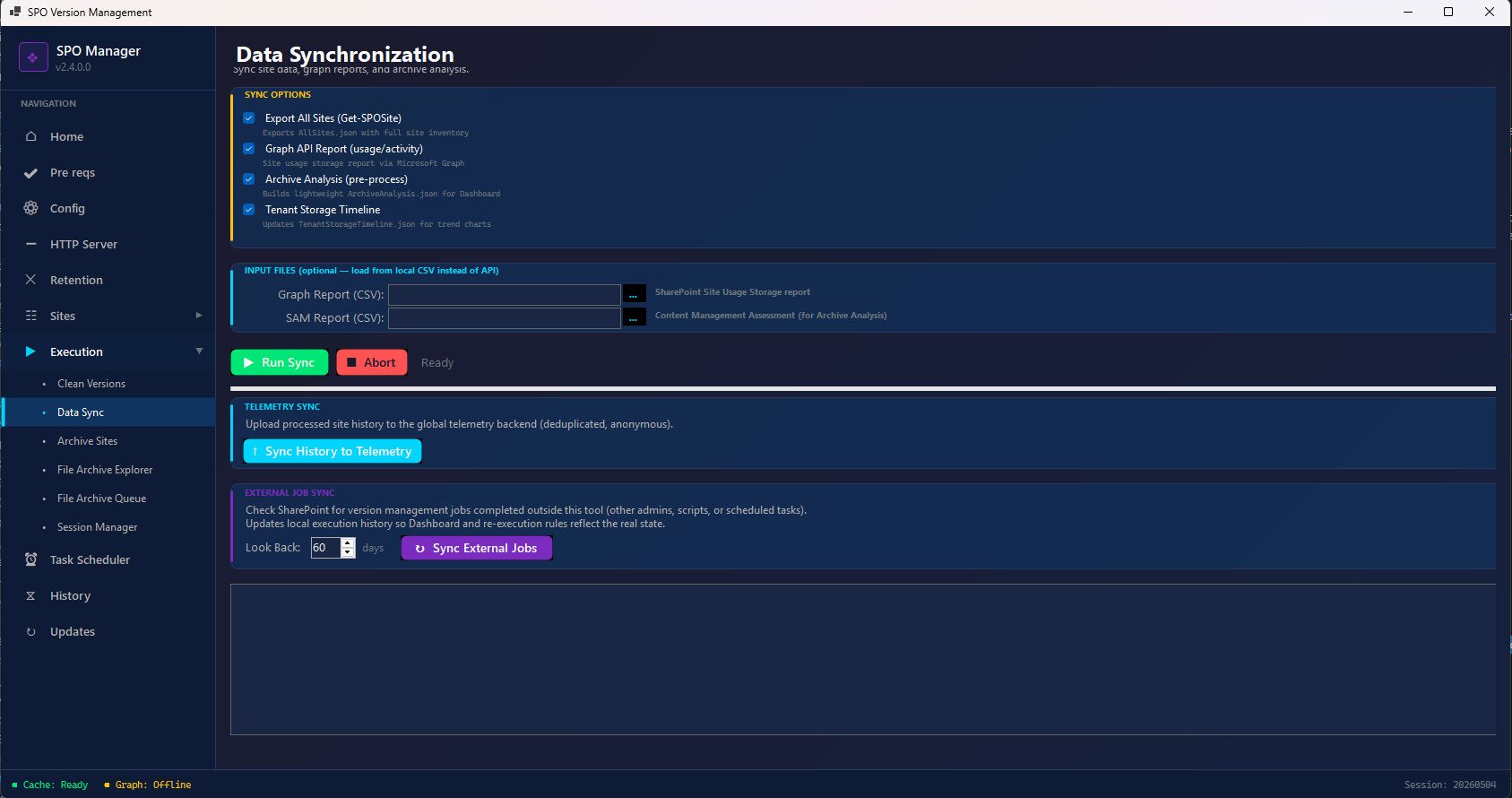
Synchronize tenant data for the dashboard, analytics, and execution history.
Sync Options
| Option | Description |
|---|---|
| ☑️ Export All Sites (Get-SPOSite) | Full site inventory → AllSites.json |
| ☑️ Graph API Report (usage/activity) | Site usage storage report via Microsoft Graph → usage metrics for dashboard |
| ☑️ Archive Analysis (pre-process) | Builds lightweight ArchiveAnalysis.json for dashboard archive views |
| ☑️ Tenant Storage Timeline | Updates TenantStorageTimeline.json for trend charts |
Input Files (optional)
Load data from local CSV files instead of calling APIs. Useful when you already have reports downloaded or when running offline.
| Field | Description |
|---|---|
| Graph Report (CSV) | SharePoint Site Usage Storage report — skips the Graph API call and imports directly |
| SAM Report (CSV) | Content Management Assessment or Inactive Site Policy export from SharePoint Admin Center — used by Archive Analysis |
Leave empty to use the default API-based data retrieval.
Click ▶ Run Sync to execute all checked options. Click ■ Abort to stop.
Telemetry Sync
If you upgraded from a previous version and have execution history that was never synced to the community backend, click ↑ Sync History to Telemetry to upload anonymized past results. This is a one-time manual sync for pre-existing data.
External Job Sync
Checks SharePoint for version management jobs completed outside this tool — by other admins, scripts, or scheduled tasks.
| Field | Description |
|---|---|
| Look Back | How many days to search (default: 60) |
| ↻ Sync External Jobs (purple) | Queries all sites for BatchDeleteJobProgress and updates local execution history |
This ensures your Dashboard and re-execution rules (Re-execution Days) reflect the real state, even if other people ran cleanup jobs on the same tenant.
PowerShell equivalent:
# Sync only (no version deletion)
.\Start-SPOVersionManagement.ps1 -AdminUrl "https://contoso-admin.sharepoint.com" -SyncOnly

# Then open the dashboard to see updated data
.\Start-Dashboard.ps1
Archive Sites
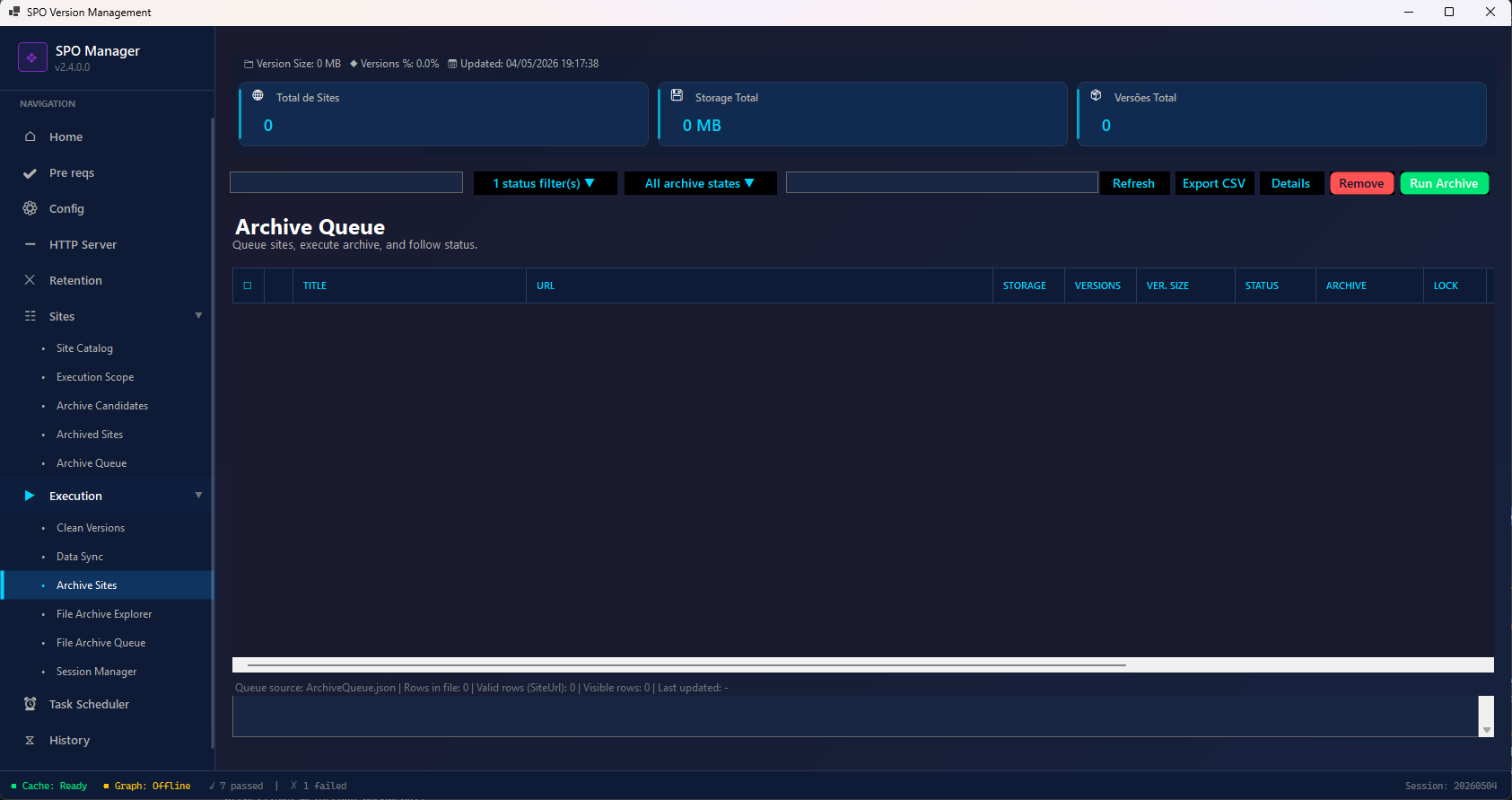
Execute the archive operation for sites in the Archive Queue. This screen shows the same Archive Queue grid and lets you trigger the archival.
When you click Run Archive, the tool opens a new PowerShell window and processes each site sequentially using the Microsoft SharePoint archive command.
The bottom status bar shows queue source and row counts.
PowerShell equivalent:
.\Start-ArchiveWebsites.ps1

# Or archive individual sites:
Set-SPOSiteArchiveState -Identity "https://contoso.sharepoint.com/sites/oldsite" -ArchiveState Archived
File Archive Explorer
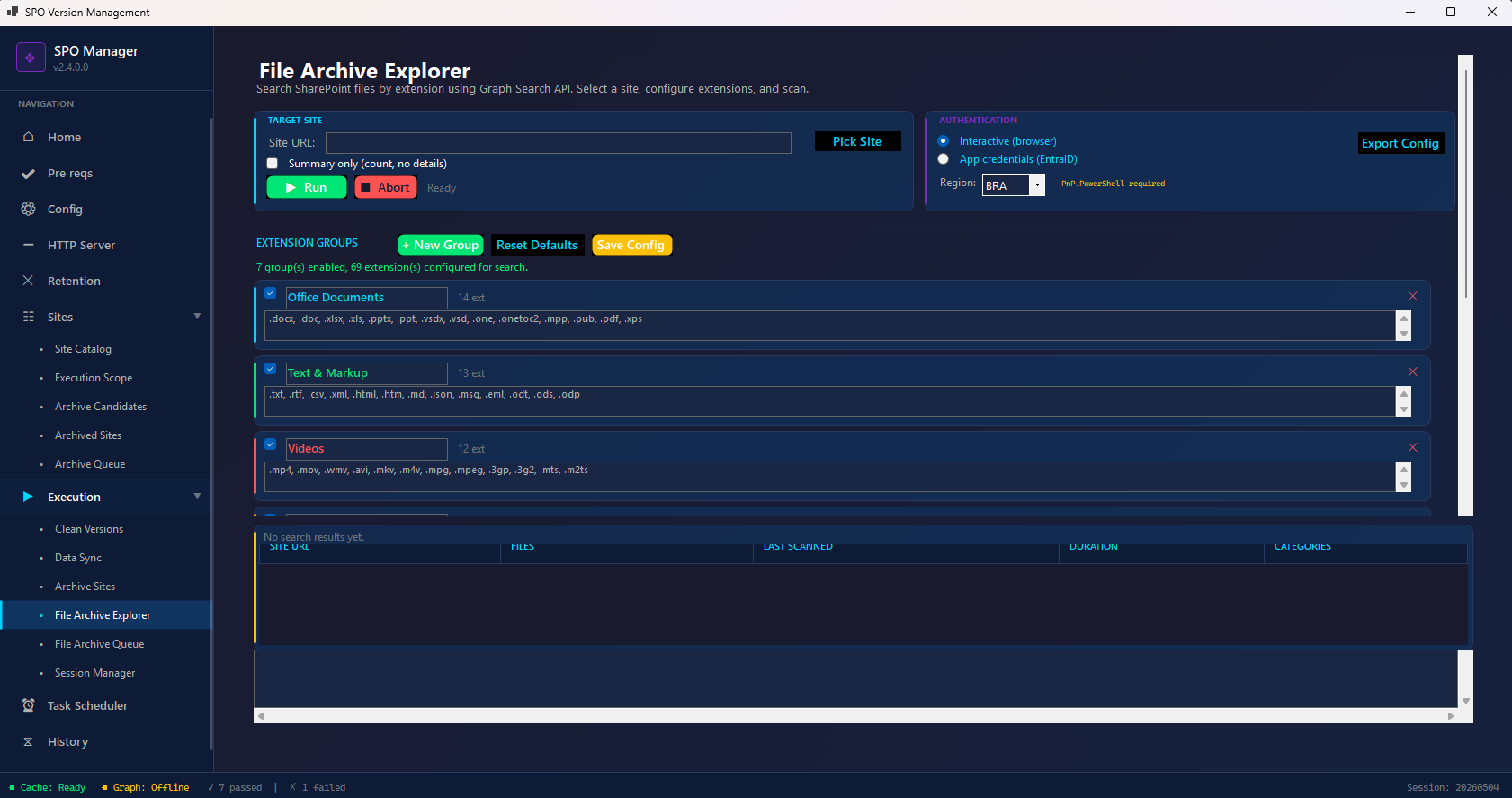
Search for files by extension across a specific SharePoint site using the Graph Search API. This lets you find large or unnecessary files to archive at the file level (not site level).
Management is per site — select one site at a time to scan.
Target Site
| Field | Description |
|---|---|
| Site URL | The site to scan |
| Pick Site | Browse and select from your site catalog |
| ☐ Summary only (count, no details) | Just count files without downloading individual file metadata |
Authentication
| Option | Description |
|---|---|
| ● Interactive (browser) | Login via browser popup |
| ● App credentials (EntraID) | Use certificate-based app authentication |
| Region | Your Microsoft 365 data region (e.g., BRA, NAM, EUR) for search endpoint routing |
Extension Groups
Create and manage groups of file extensions to search for. The tool uses the SharePoint search index to find matching files.
| Default Group | Extensions |
|---|---|
| Office Documents (14 ext) | .docx, .doc, .xlsx, .xls, .pptx, .ppt, .vsdx, .vsd, .one, .onetoc2, .mpp, .pub, .pdf, .xps |
| Text & Markup (13 ext) | .txt, .rtf, .csv, .xml, .html, .htm, .md, .json, .msg, .eml, .odt, .ods, .odp |
| Videos (12 ext) | .mp4, .mov, .wmv, .avi, .mkv, .m4v, .mpg, .mpeg, .3gp, .3g2, .mts, .m2ts |
Extension Group Actions:
- + New Group — Create a custom group
- Reset Defaults — Restore default groups
- Save Config — Save current extension configuration
- ✗ — Delete a group
- ↕ — Reorder groups
Results Grid
After scanning, results show:
| Column | Description |
|---|---|
| Site URL | Source site |
| Files | Number of matching files found |
| Last Scanned | When the scan ran |
| Duration | How long the scan took |
| Categories | Which extension groups had matches |
Actions:
- ▶ Run — Execute the search
- ■ Abort — Stop the search
- Export Config — Export extension group configuration
Select files from results and add them to the File Archive Queue for archival.
Requires:
PnP.PowerShellmodule (PS 7+).
File Archive Queue
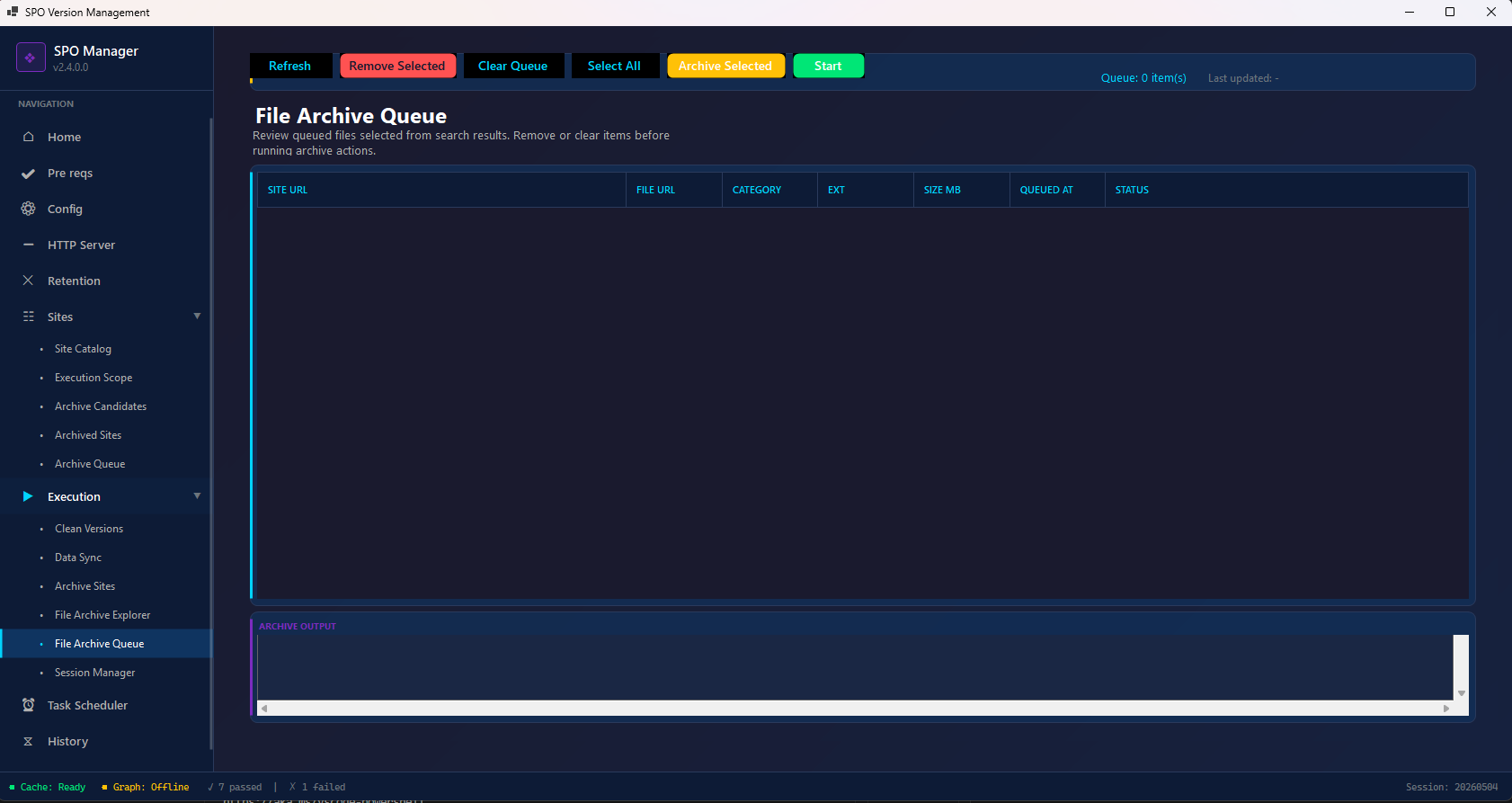
Track and execute file-level archive operations for files found via the File Archive Explorer.
| Column | Description |
|---|---|
| Site URL | Source site |
| File URL | Individual file path |
| Category | Extension group |
| Ext | File extension |
| Size MB | File size |
| Queued At | When added to queue |
| Status | Pending / Archived / Failed |
Actions:
- Refresh — Update status of all items
- Remove Selected — Remove from queue
- Clear Queue — Remove all items
- Select All / Archive Selected — Archive specific files
- Start — Begin archiving all queued files
Session Manager
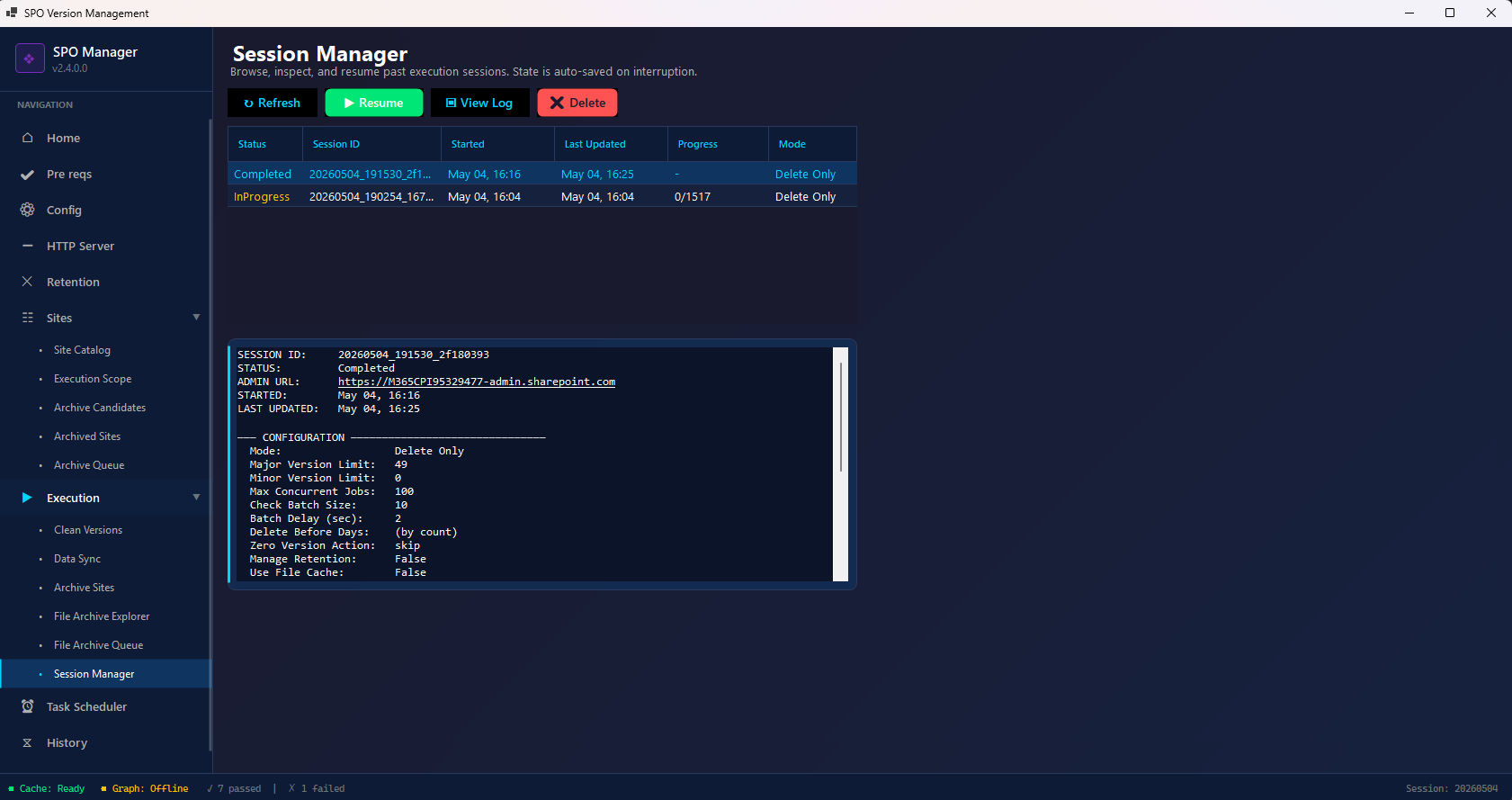
Browse, inspect, and resume past execution sessions. State is auto-saved on interruption so you never lose progress.
Session Grid
| Column | Description |
|---|---|
| Status | Completed (green) / InProgress (yellow) / Failed (red) |
| Session ID | Unique session identifier (timestamp-based) |
| Started | Start timestamp |
| Last Updated | Last activity |
| Progress | Sites processed / total (e.g., “0/1517”) |
| Mode | Delete Only / Sync+Delete / etc. |
Actions (toolbar)
| Button | Description |
|---|---|
| ↻ Refresh | Reload session list |
| ▶ Resume (green) | Continue an interrupted session from where it stopped |
| 📋 View Log | See full session configuration in the detail panel |
| ✗ Delete (red) | Remove a session record |
Session Detail Panel (bottom)
When you select a session, the detail panel shows the full configuration used:
- Session ID, Status, Admin URL, Started/Last Updated timestamps
- Configuration: Mode, Major/Minor Version Limit, Max Concurrent Jobs, Check Batch Size, Batch Delay, Delete Before Days, Zero Version Action, Manage Retention, Use File Cache
This is useful for auditing and understanding what parameters were used in each execution.
Task Scheduler
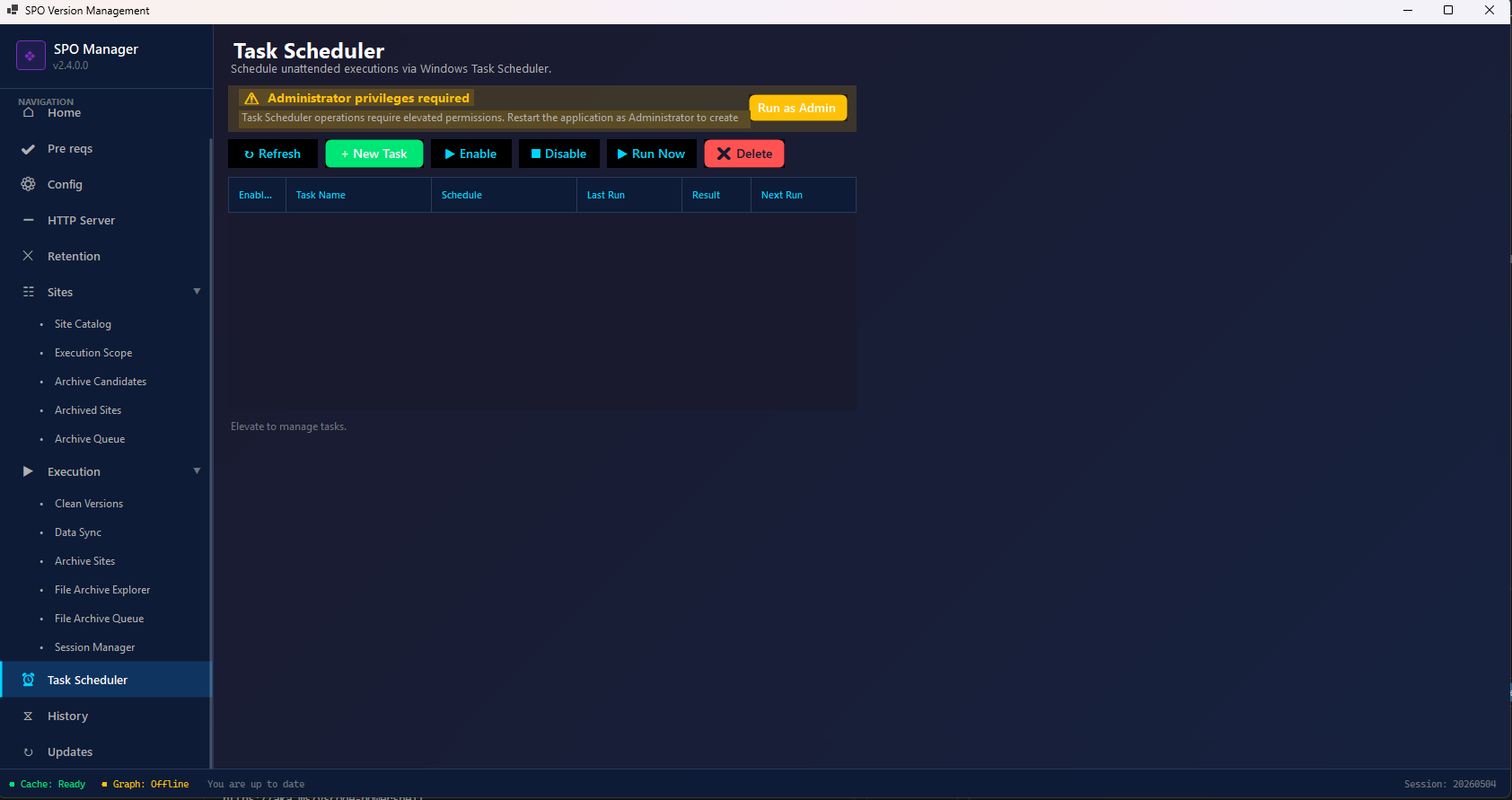
Schedule unattended executions via Windows Task Scheduler.
⚠️ Administrator privileges required. Click Run as Admin to elevate the application.
| Action | Description |
|---|---|
| + New Task | Create a new scheduled task |
| Enable / Disable | Toggle a task on/off |
| Run Now | Execute immediately |
| Delete | Remove a scheduled task |
The grid shows: enabled state, task name, schedule (cron), last run, result, and next run.
Important: Scheduled tasks run unattended and require Entra ID app registration with certificate authentication. Interactive login cannot work without a user present. See the Entra ID App Setup Guide.
PowerShell equivalent:
# The task scheduler creates a Windows scheduled task that runs:
.\Start-SPOVersionManagement.ps1 `
    -AdminUrl "https://contoso-admin.sharepoint.com" `
    -MajorVersionLimit 5 `
    -Unattended
History
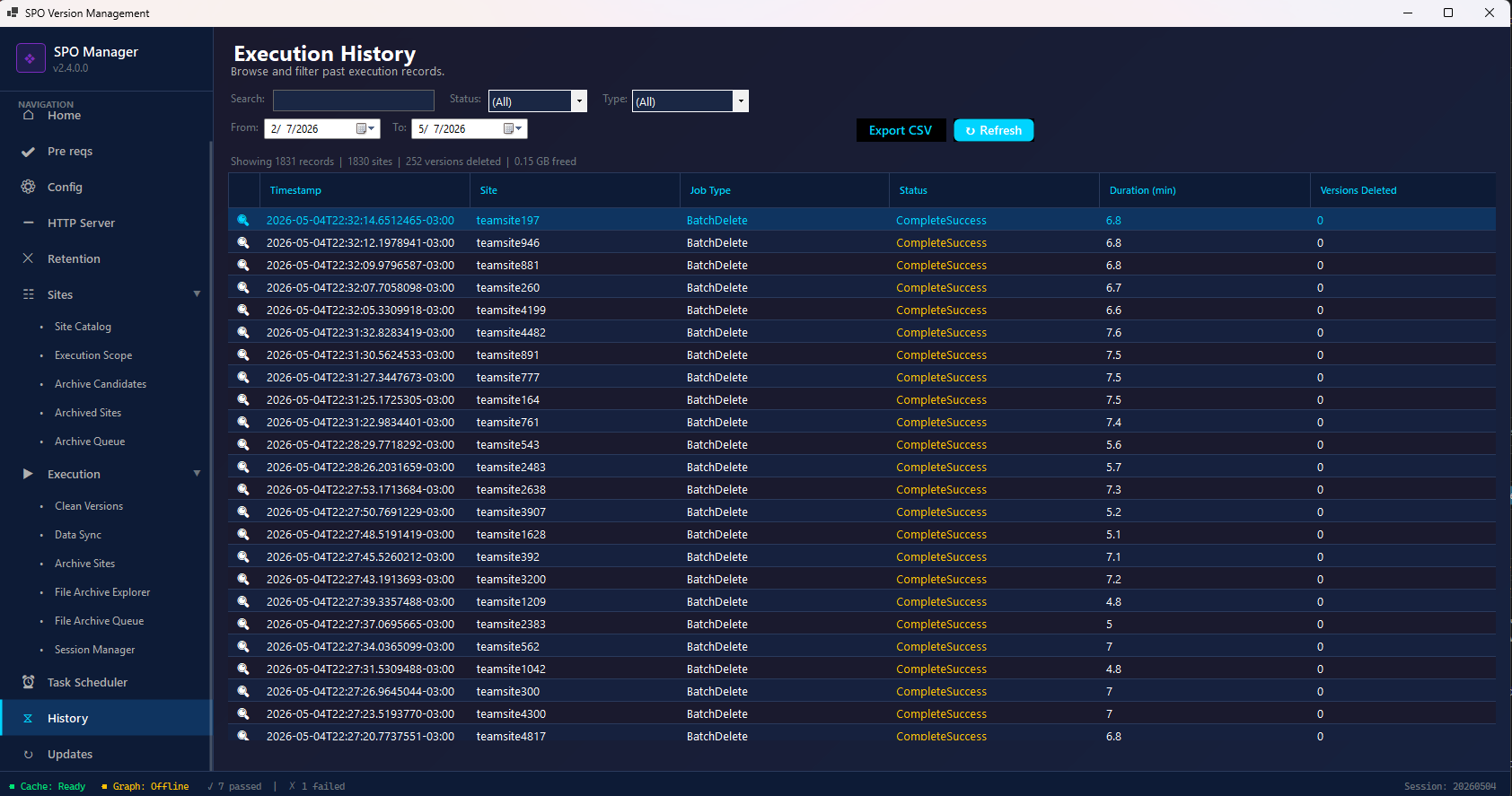
Full execution audit trail. Browse and filter every job ever executed by the tool.
Filters:
- Search — Free text search (site name, session ID, etc.)
- Status — Filter by: All, CompleteSuccess, Failed, InProgress
- Type — Filter by: All, BatchDelete, SyncListPolicy
- Date range — From/To date pickers
Grid Columns:
| Column | Description |
|---|---|
| Timestamp | Exact execution time (ISO 8601) |
| Site | Site name processed |
| Job Type | BatchDelete or SyncListPolicy |
| Status | CompleteSuccess, Failed, InProgress |
| Duration (min) | How long the job took |
| Versions Deleted | Number of versions removed |
Actions:
- Export CSV — Download the full history as CSV for Power BI or Excel analysis
- Refresh — Reload from the local database
PowerShell equivalent:
# History is stored in config\SiteExecutionHistory.json
# Export to CSV for analysis:
$history = Get-Content .\config\SiteExecutionHistory.json | ConvertFrom-Json
$history.Sites | Export-Csv -Path "ExecutionHistory.csv" -NoTypeInformation
Updates
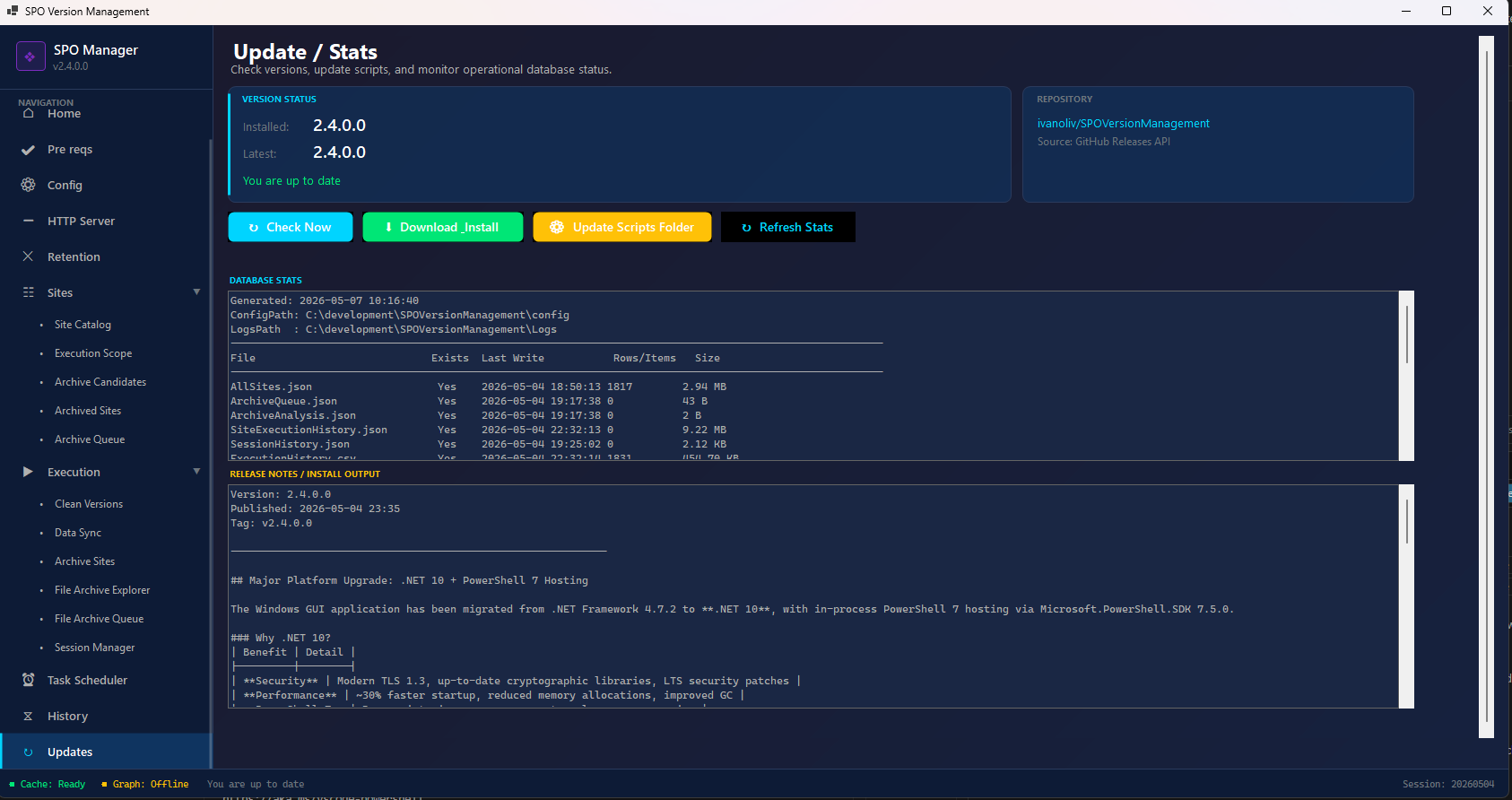
Check for new versions, download, and install updates automatically.
Features:
- Current version — Shows installed version (e.g., v2.4.0.0)
- Available version — Latest version on GitHub
- Download & Install — Downloads the ZIP, extracts over the existing installation (preserving all JSON config/data files)
- View local JSON databases — Check the state and size of your config files
- View release notes — See what changed in the latest release
The update process:
- Downloads the latest release ZIP from GitHub
- Extracts files, overwriting only application files
- Preserves:
config/folder,Logs/folder, all JSON databases - Shows release notes after completion
Status Bar
The bottom status bar (always visible) shows real-time system state:
| Indicator | Meaning |
|---|---|
| 🟢 Cache: Ready | AllSites.json is loaded and available |
| 🟡 Graph: Offline | Graph API not connected (normal if using Skip Graph mode) |
| ✓ N passed | Prerequisites that passed |
| ✗ N failed | Prerequisites that need attention |
| Session: YYYYMMDD | Current active session ID |
| You are up to date | App is on the latest version |